Database View
Overview
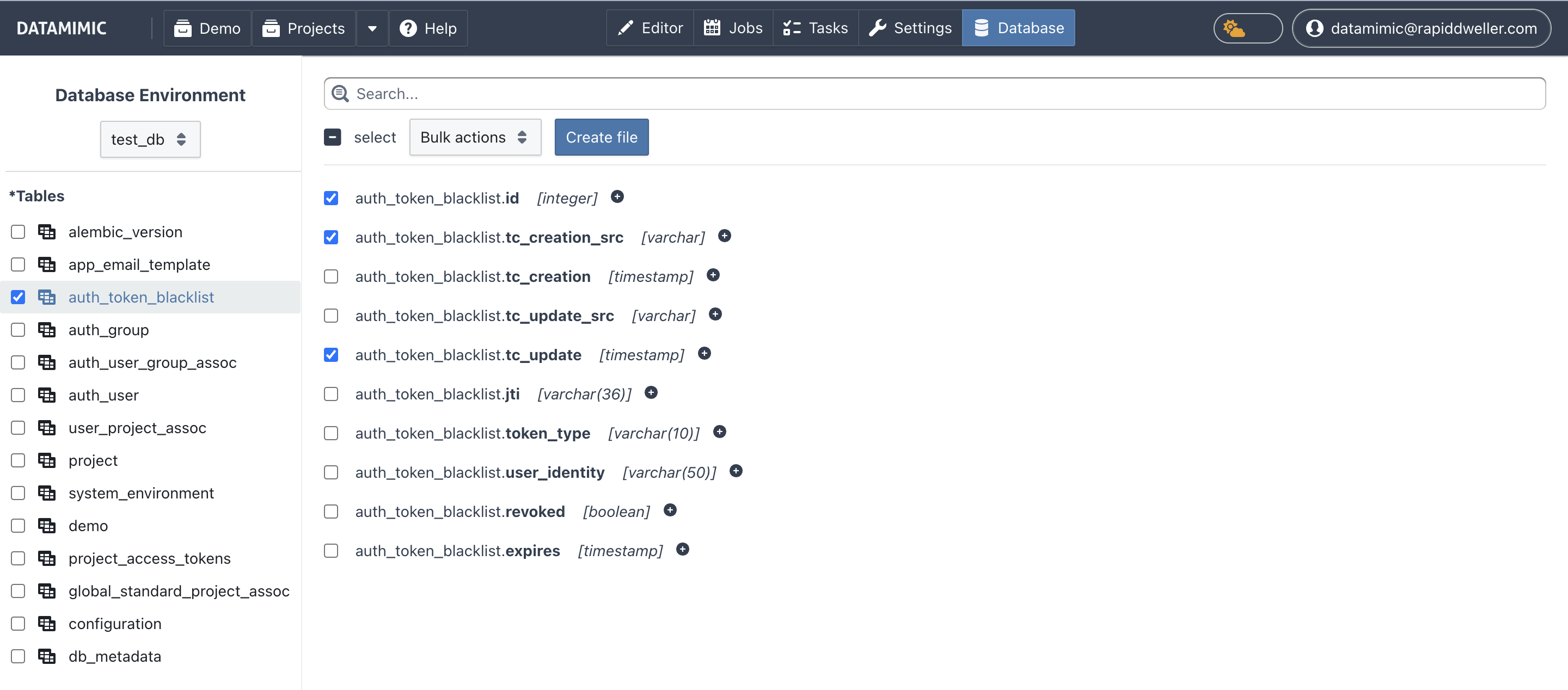
The DATAMIMIC Database View is the central workspace for metadata-driven artifact generation from relational databases.
It combines scope selection, dependency planning, weighting preparation, schema drift visibility, and model creation actions in one place.
As of 3.1.0, generating a DATAMIMIC model from database metadata is handled in the Database View and no longer in the Editor file flow.
As of 3.2.0, this flow is organized in dedicated Database workbench tabs (Planning, Weighting, Schema history) with explicit create actions.
Maturity and Expectation Setting
Database View metadata-based model support is actively evolving and is under continuous development.
Treat generated artifacts and recommendations as a strong starting point, not as final production-ready output.
- Manual review and tuning remain expected, especially for complex relationships and large production schemas.
- Recommendation outcomes depend on metadata quality, relationship quality, and project-specific masking requirements.
- Use explicit controls (for example manual column-level PII decisions, including marking columns as 100% PII) to override or tighten generated defaults.
Planned expansion areas include:
- richer override controls for recommendation decisions,
- stronger support for project- and environment-specific aliases (generators, entity attributes, PII field aliases),
- assisted pre-anonymization flows based on uploaded specifications for large metadata structures.
Before You Start
- Create a database Environment.
- Run Scan Metadata for this environment.
- If metadata is outdated or inconsistent, run Reset Metadata and then Scan Metadata again.
This reset/rescan flow is the supported way to refresh model inputs after schema changes.
Supported Relational Databases
- PostgreSQL
- Oracle
- Additional systems if enabled on your instance
Key Capabilities
Environment, Schema, Table, and Column Transparency
- Select one environment from the dropdown.
- Browse tables and columns with clear structure visibility.
- Review schema-qualified table names where available to avoid ambiguity.
- Use the schema filter in the sidebar to narrow large table lists quickly.
Metadata Scan Scope (All Accessible Schemas)
Scan Metadatauses the database as scope and reflects all schemas that are accessible for the configured user.- The schema configured in the environment is treated as the default schema for unqualified names.
- Schemas that are not accessible are skipped (best-effort behavior) and reported in task logs.
- This broader metadata scope improves discovery of cross-schema relationships used by Plan Subset and metadata-driven artifact generation.
Subset Selection and Bulk Actions
- Select tables and columns for your model subset.
- Use Select All / Deselect All to reset or apply selection quickly.
- When a table filter is active, Select All / Deselect All applies to the currently visible filtered table list.
- Use bulk actions to apply scripts/generators consistently across selected columns.
Plan Subset (Relationship Closure)
- Run Plan Subset to analyze table relationships and foreign-key dependencies.
- Apply the proposed closure to include additional required tables for referentially consistent generation.
- After planning, the sidebar table list is focused to IN SCOPE tables only.
- Use Reset in the Planning step to invalidate the active subset snapshot and restore the original
requested_roots. - While the subset snapshot is active, global table Select All / Deselect All actions are intentionally locked.
- Synthetic DATAMIMIC model creation is enabled only after Plan Subset has been executed and reviewed.
PII Pre-Selection
Database View supports pre-selection of columns identified as likely PII candidates.
You can review and adjust this selection before creating the model.
Database Workbench Tabs
- Planning: run subset closure planning and validate dependencies before generation.
- Weighting: prepare weighting scope from selected table columns and create weighting files.
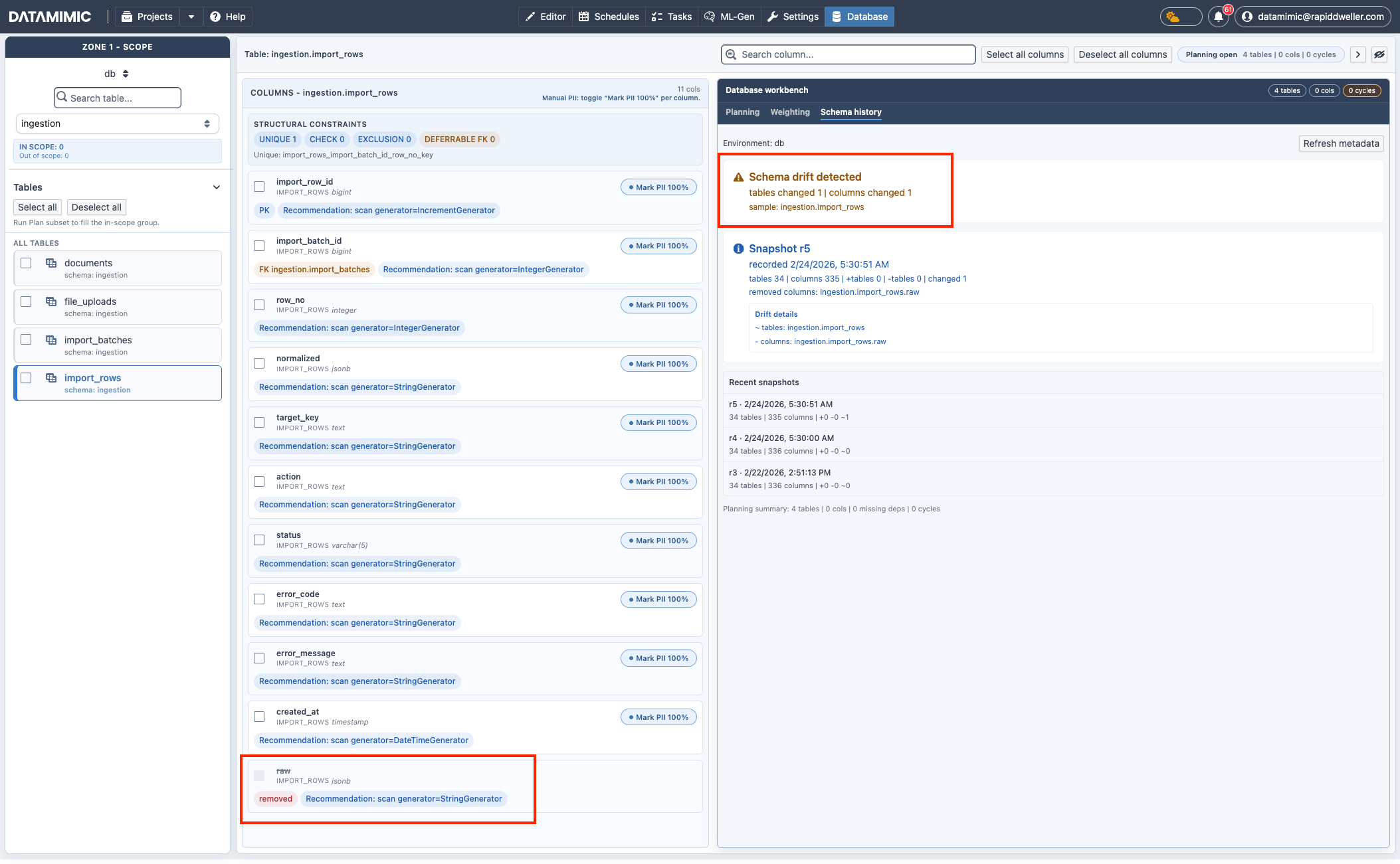
- Schema history: inspect schema drift and metadata snapshot changes.
Generate Artifacts from Planning
Use the action buttons in Generate artifacts:
- Create Synthetic: synthetic model artifact from planned subset metadata.
- Create Anonymize: anonymization-oriented model artifact with source/target DB settings.
- Create ML: ML-training-oriented model artifact from planned subset metadata.
Relationship Source for References
When creating a database model artifact, choose how <reference> values are resolved:
| Mode | Use when | Constraints |
|---|---|---|
database |
You want parent-key reuse to be driven by source DB records (source + sourceType) |
Supported across DB builder modes. |
weighting_files |
You want fully synthetic FK selection from weighting files under data/ (.wgt.csv / .wgt.ent.csv) |
Supported only for model creation with builder_mode=datamimic; .wgt.csv is single-target only. |
For exact <reference> mapping semantics (single/composite mappings, <field>, sourceKey, and precedence), see Data Definition Model - Advanced Elements.
Typical generated <reference> outputs:
1 2 3 4 | |
1 2 3 4 | |
Create Weighting Files from Metadata (3.2.0)
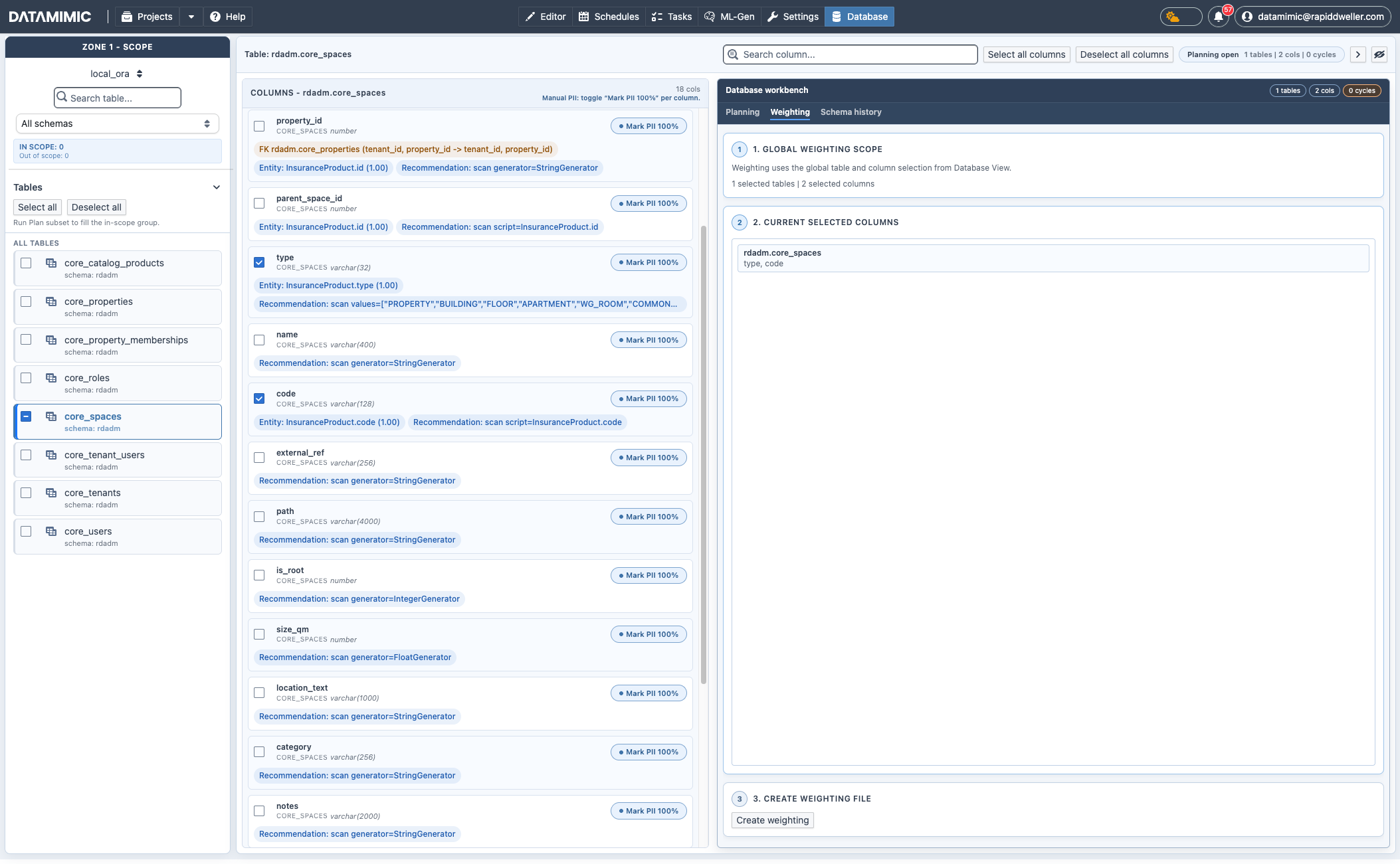
- Switch to Database workbench → Weighting to create weighting artifacts from selected metadata.
- Select exactly one table and at least one column:
- 1 selected column →
.wgt.csv - 2+ selected columns →
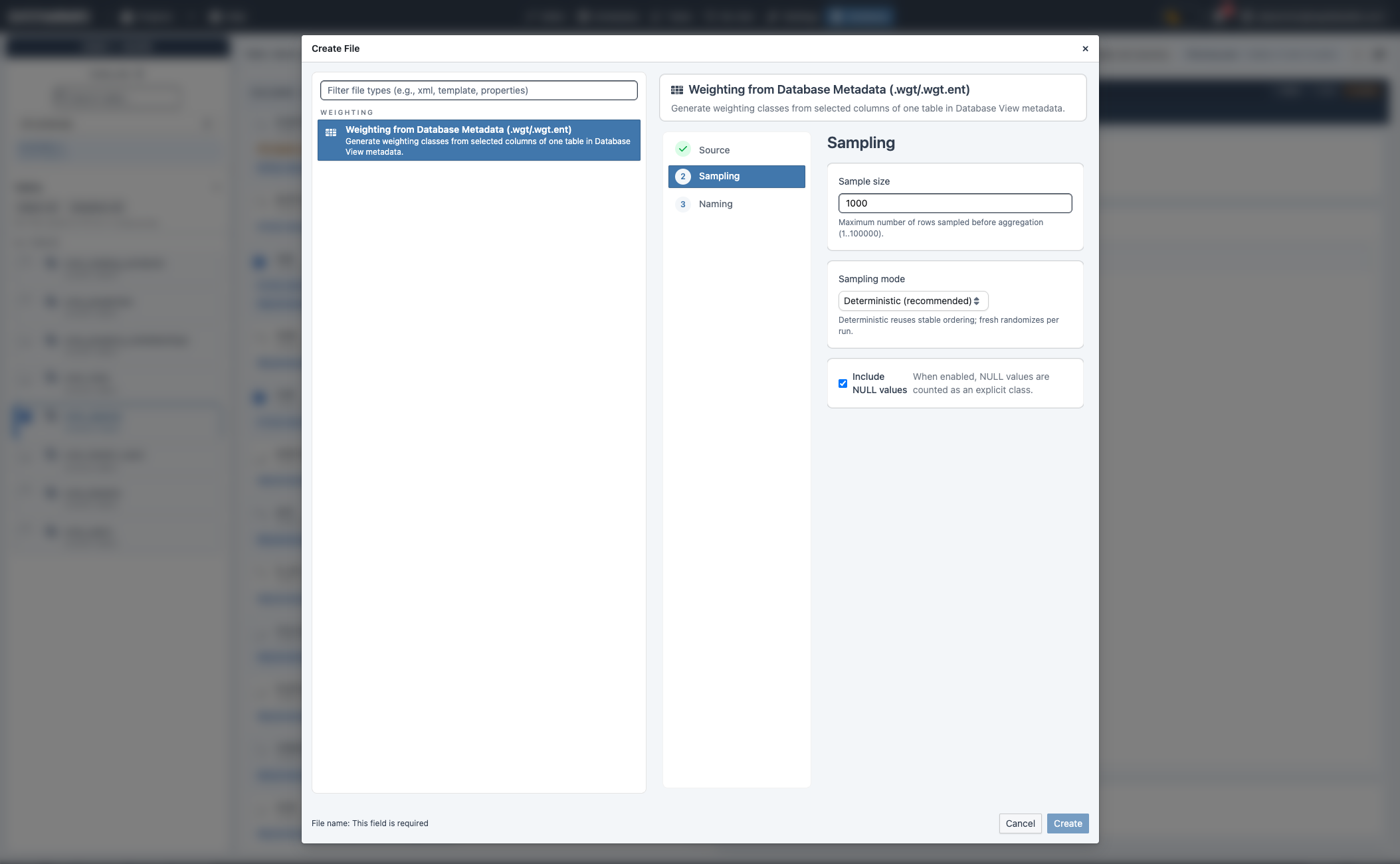
.wgt.ent.csv - Sampling options:
sample_size(default:1000)sampling_mode:deterministicorfreshinclude_nulls: include/exclude NULL as an explicit class- Weighting values are written as normalized factors (
count / sampled_rows) to keep distributions comparable across sample sizes.
Schema History and Drift Visibility
- Use Database workbench → Schema history to review metadata drift across snapshots.
- Drift details (changed tables/columns) help validate whether subset planning or regeneration is required.
After selecting your subset:
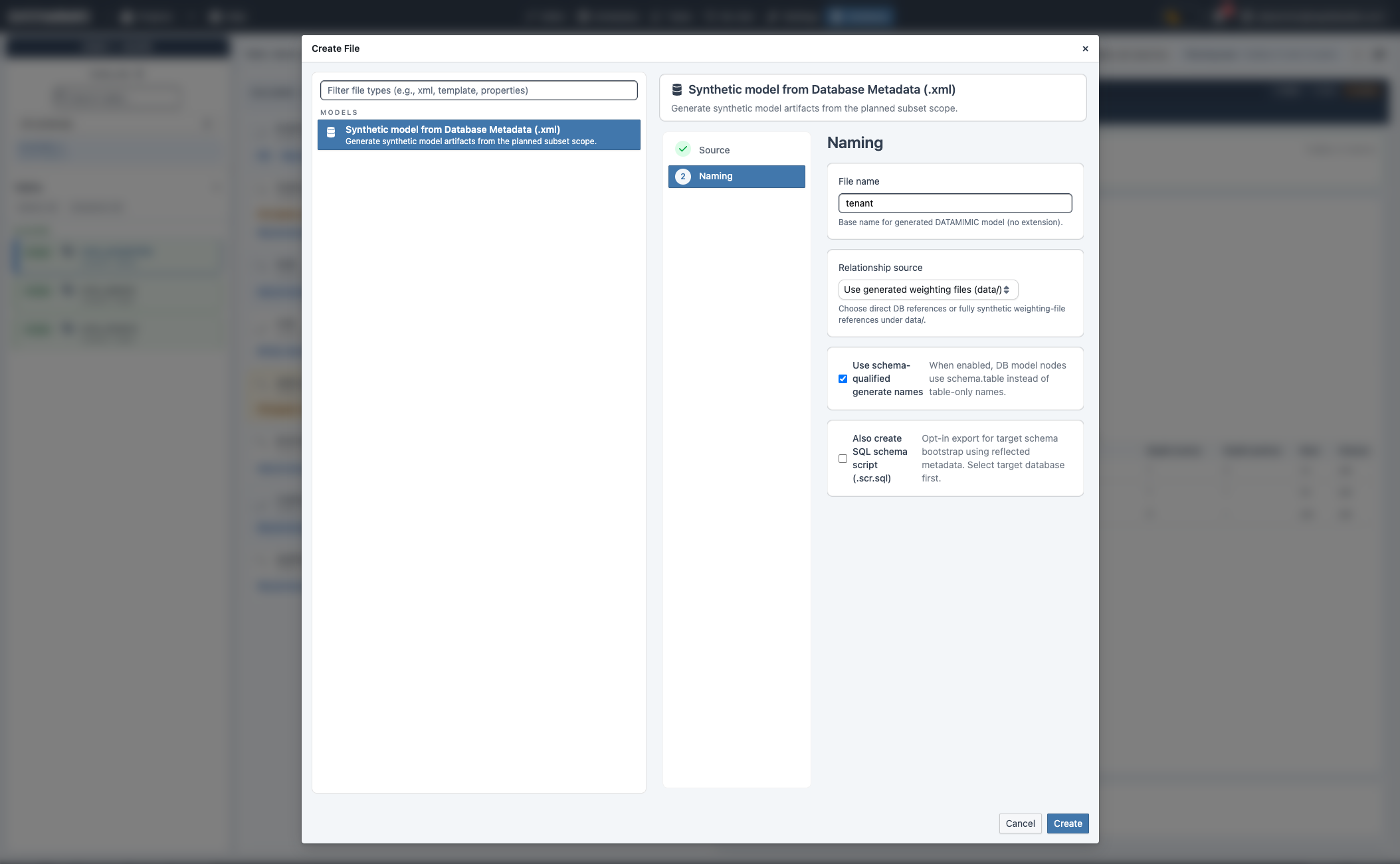
Create Synthetic model
- Run Plan Subset, review dependencies, and apply relationship closure.
- Click Create Synthetic.
- Enter model file name.
- Configure relationship source and optional schema-qualified naming.
- Optionally enable SQL schema script export (
.scr.sql) when needed. - Review and create.
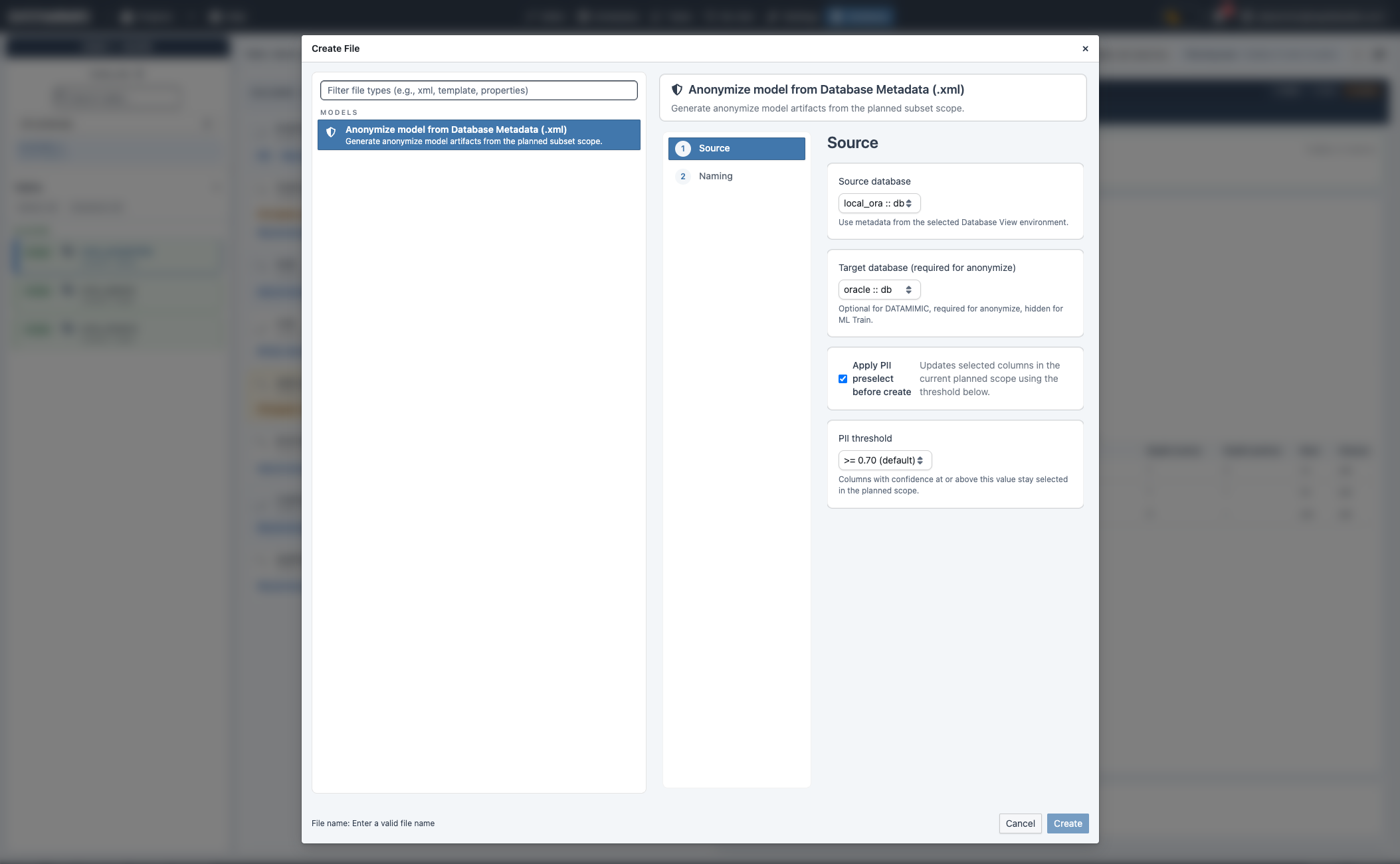
Create Anonymize model
- Run Plan Subset and confirm selected scope.
- Click Create Anonymize.
- Set source and target database.
- Optionally apply PII preselect and threshold.
- Name and create.
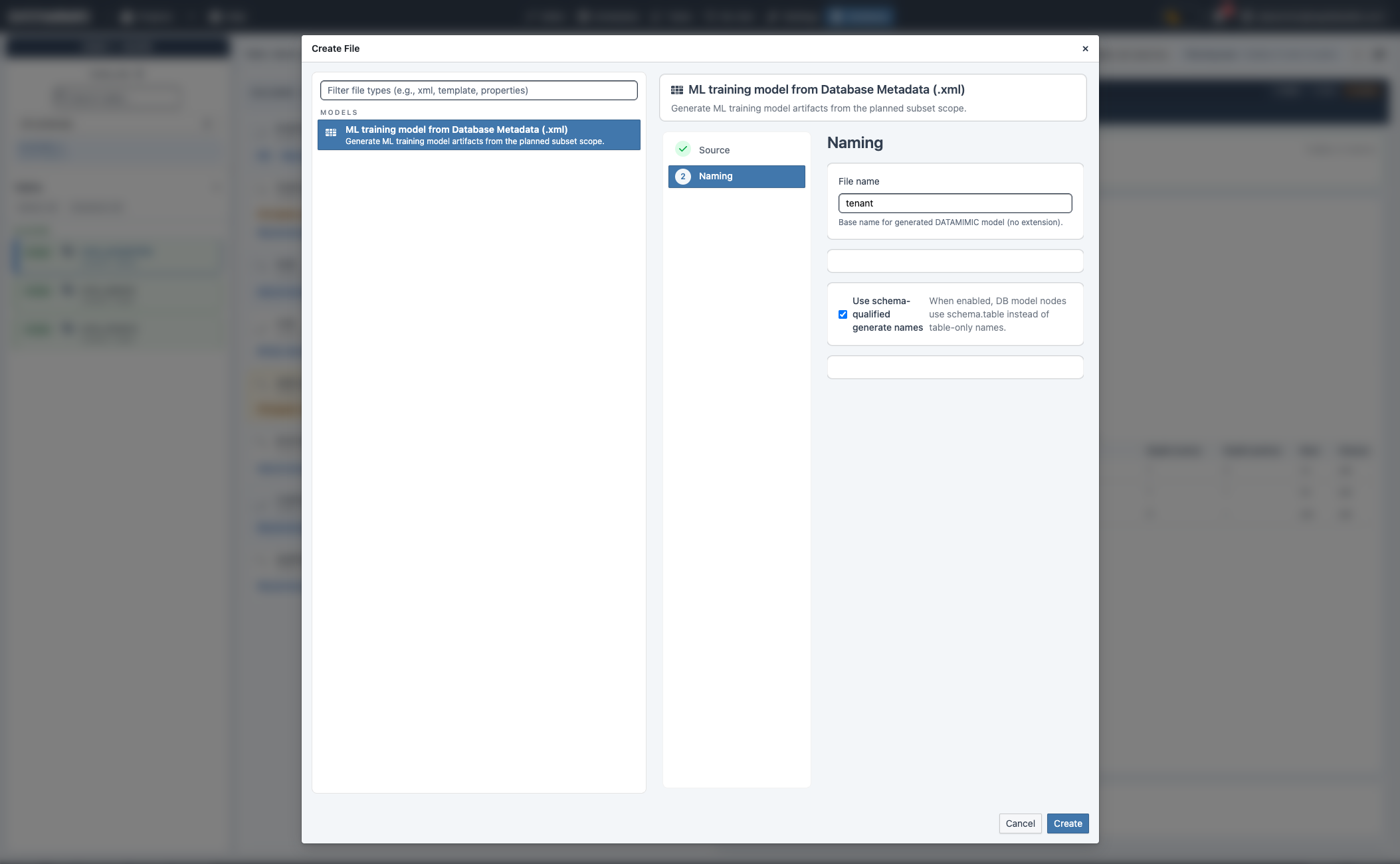
Create ML model
- Run Plan Subset and confirm selected scope.
- Click Create ML.
- Confirm source and enter file name.
- Optionally enable schema-qualified generated names.
- Review and create.
From Create ML to ML Generator View
After creating ML model artifacts from Database View:
- Execute the generated DSL model so
<ml-train>can train and persist ML generator versions. - Open ML Generator View.
- Select the generated model and inspect KPI/quality status.
- Choose a version and set it as default when approved.
- Reuse the model in DSL with
source="ml://<model_name>".
Large training scopes can be long-running and may require higher runtime resources (CPU/RAM and, depending on setup, GPU-enabled workers).
Create a weighting file
- Select exactly one table and relevant column(s) in Database View.
- Open the Weighting tab.
- Click Create weighting.
- Set filename and sampling options (sample size, mode, include NULLs).
- Review and create:
.wgt.csvfor single-column weighting.wgt.ent.csvfor multi-column entity weighting
For a full walkthrough, see Auto-Generate Model from Database.