Experimental LSP (Language Server Protocol)
The DATAMIMIC editor can use an Experimental LSP (Language Server Protocol) integration to improve editor assistance for DATAMIMIC model editing. When enabled, LSP powers richer autocomplete and hover/preview behavior and can surface diagnostics.
Experimental feature
Performance and functionality may be incomplete while LSP is still experimental for your project. Enable it at your own risk.
Enable / Disable
LSP is controlled per project.
To enable/disable the toggle, see: Settings: Experimental LSP Toggle.
Once enabled, the editor will start the LSP session for the project and keep it across file switches inside the editor view.
What LSP affects
LSP is used only for XML-like, non-global editor files:
- File types:
.xmland.template.xml - Not used for: global read-only overlay files
If you enable LSP and open a non-applicable file, you will not see LSP-driven assistance for that file.
Use in Simple Mode (UI Guidance)
When LSP is enabled for the project, Simple Mode provides LSP-backed assistance inside the UI guidance flow (especially in property dialogs for model editing).
LSP status
Simple Mode shows an LSP status dot with a tooltip that includes:
- connection status (
idle,connecting,ready,error) - diagnostics count
If diagnostics are available, nodes in the editor tree can show an LSP Diagnostics indicator. The tooltip displays the top diagnostic messages for that node.
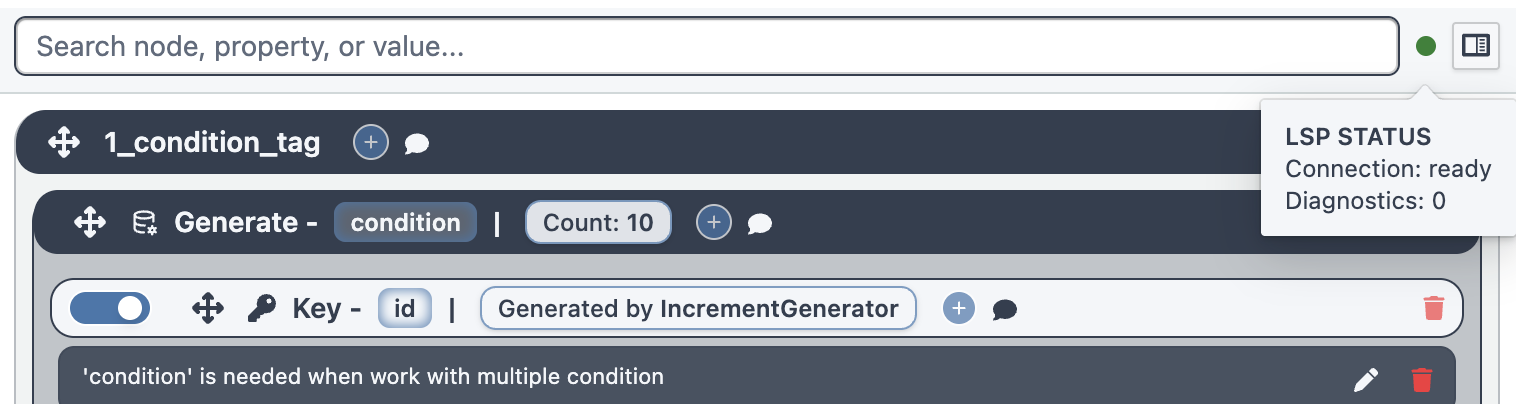
Autocomplete and diagnostics
In Simple Mode dialogs (for example when selecting a property/child name), LSP can provide candidate suggestions.
Diagnostics from publishDiagnostics are mapped onto the editor tree so you can quickly identify problem areas.
Hover / preview behavior
When you are editing property details, LSP can provide a hover preview for the current context (for example, a value-related preview) when the dialog requests it.
Read-only behavior
If the file is read-only, Simple Mode does not send editor edits back to LSP while you are working, but it can still show status/diagnostics based on the synced editor snapshot.
Use in Advanced Mode (XML Code View)
Advanced Mode integrates LSP with the Monaco-based XML editor for autocomplete, hover, and diagnostics.
LSP status
Advanced Mode displays an LSP status dot in the editor area. The tooltip shows:
- connection status (
idle,connecting,ready,error) - health status (
okor non-OK) - last health check time
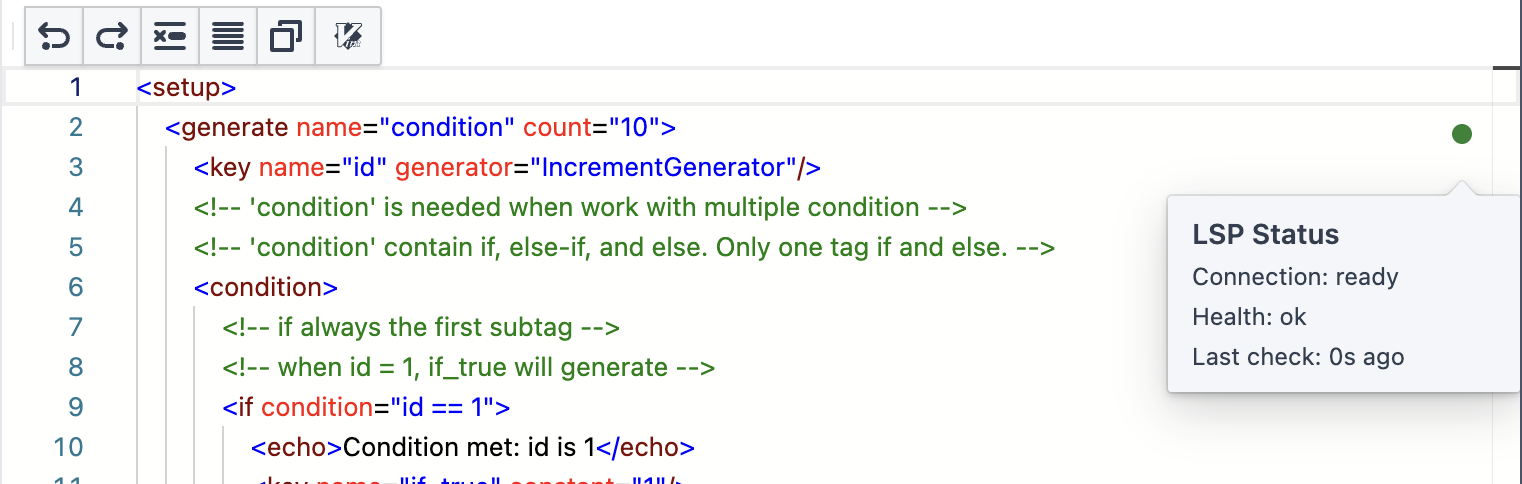
Autocomplete and hover
For XML-like files (.xml, .template.xml), Advanced Mode uses LSP to provide:
- context-aware autocomplete suggestions
- hover/preview information for elements and attributes
If LSP is not available (for example, not connected yet), Advanced Mode falls back to the editor’s local assistance (for example, schema/code-hint-based guidance).
Diagnostics in the editor
When LSP is active, editor diagnostics are surfaced as Monaco markers for the current XML document.