UI / GUI
Learn about the various UI screens and elements of DATAMIMIC UI.
General Appearance of the UI
The DATAMIMIC user interface (UI) is designed to be intuitive and user-friendly, providing easy navigation and access to various features. Below is an overview of the main components of the UI.
Navigation Sidebar
Primary navigation lives in a sidebar on the left edge of the screen:
- Demo Store: Access the Demo Store where you can browse and clone various demo projects.
- Projects: Navigate to your projects.
- Notification: View application notifications.
- Help: At the bottom of the sidebar — access help resources and support.
The collapse toggle next to the DATAMIMIC logo shrinks the sidebar to icons only.

Top Bar
Separate from the navigation sidebar, the top bar sits above the main window and hosts the user menu and the dark mode switch, described below. Inside a project, an additional bar at the top of the workspace gives you Editor/Schedules/Task/ML-Gen/Workbench/Settings navigation for that project — see Project Workspace.
User Menu
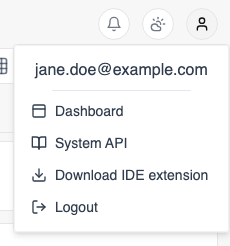
Located on the top right of the top bar, the user menu provides options related to your account:
- Settings: Open the Settings overview, including available administration controls.
- Edit profile: Open your profile settings directly.
- Preferences: Open your personal interface and editor preferences directly.
- System API: Open the API reference.
- Download IDE extension: Download the DATAMIMIC IDE extension.
- Logout: Log out of your DATAMIMIC account.
Dark Mode Switch
Next to the user menu on the top right of the top bar is the dark mode switch. This allows you to toggle between light and dark modes for a more comfortable viewing experience based on your preference.

Main Window
The main window displays content based on your selection from the navigation sidebar, top bar, or user menu. It can show different screens such as:
- Demo Store: Displays various demos to help you get started with DATAMIMIC.
- Editor Mode: Provides an interface for editing and managing your data projects.
- Settings views: Show account and instance overviews alongside the available user and administration controls.
- Control Screens: Allows you to manage different aspects of your projects and settings.
By understanding these components, you can effectively navigate and utilize the DATAMIMIC UI to its full potential.