Editor
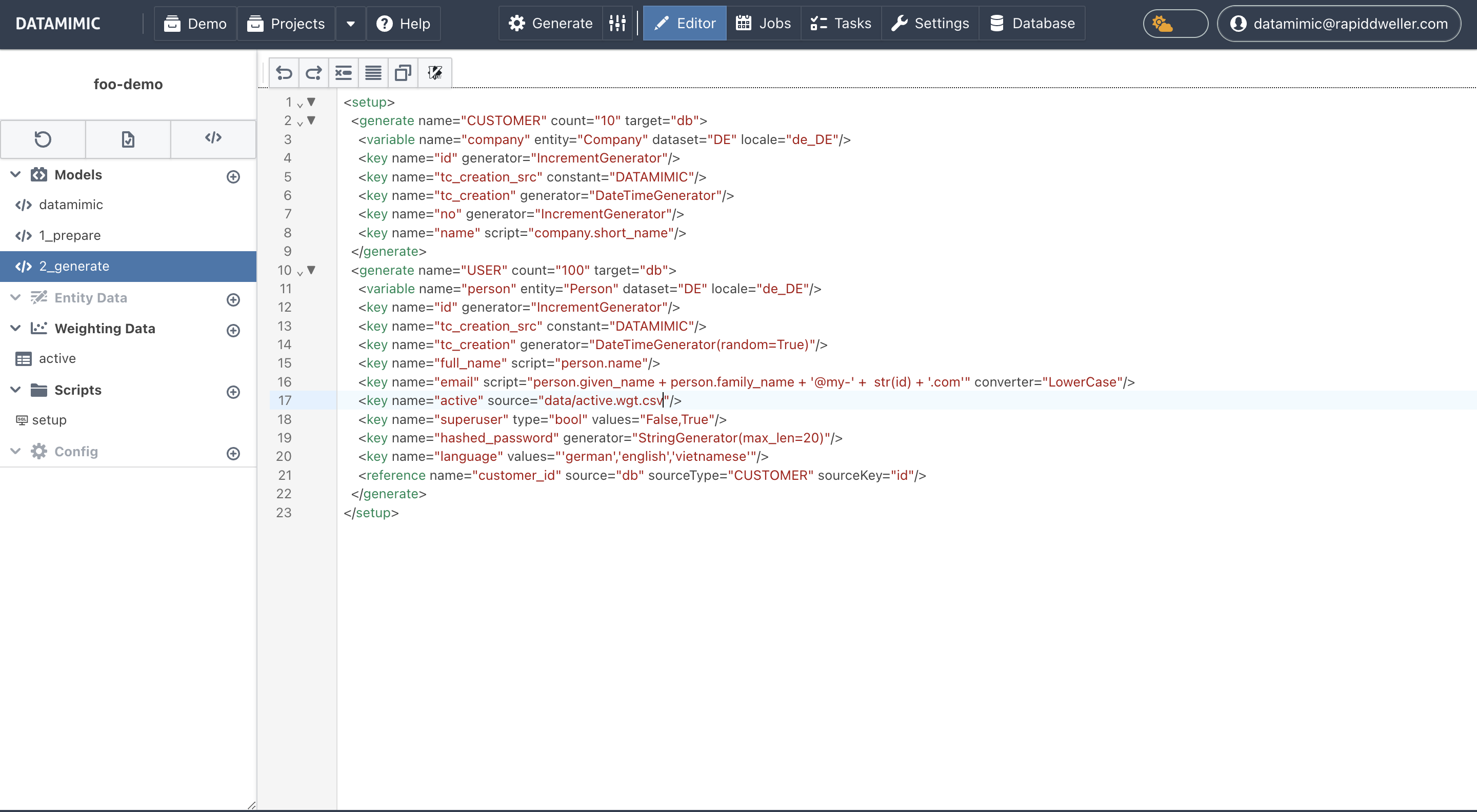
The DATAMIMIC editor is the central tool for creating and editing DATAMIMIC models. It consists of three main areas: the Editor Navigation Bar, the Business Mode File Tree, and the Editor Window. The Editor Window has two modes: Simple (UI Guidance) and Advanced (XML-based Code View).
Editor Navigation Bar
The Editor Navigation Bar is located at the top of the screen and provides essential tools and actions for working within the editor:
- Generate: Start the data generation process.
- Generate - Advanced Settings: The icon right of "Generate" triggers this mode, which allows you to set additional settings for the generation process/task execution. These settings are described in detail in the Advanced Generation Settings documentation.
- Editor: Navigate to the editor window.
- Schedules: Manage schedules.
- Task: View and manage tasks.
- ML-Gen: Open the ML Generator View for this project.
- Workbench: Open the database workbench for this project.
- Settings: Access settings for the editor.

Business Mode File Tree
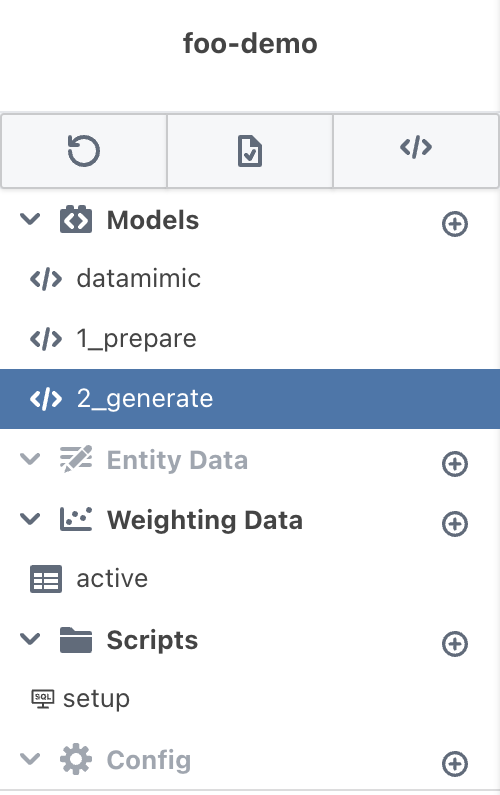
The Business Mode File Tree is located on the left side of the screen and displays the structure of your project. It lets you navigate and manage folders and files (models, entity data, weighting data, scripts, configuration files, and more) with a searchable, breadcrumb-driven layout. The sidebar is resizable and can be collapsed. Saving, resetting, and switching editor modes are in the editor's top header bar, not the sidebar.
Editor Window
The Editor Window is the main area where you can edit and manage your data projects. It has two modes: Simple (UI Guidance) and Advanced (XML-based Code View).
Mode Switch
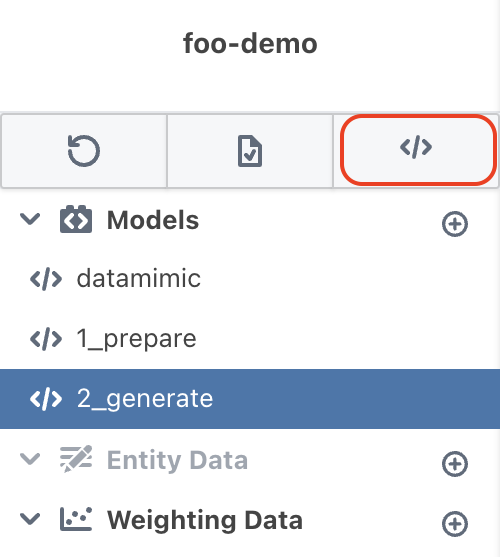
The mode switch icon is in the top toolbar, next to Generate. Use it to toggle between Simple Mode and Advanced Mode.
LSP (Language Server Protocol)
The project-scoped Language Server provides richer autocomplete, hover/preview, and diagnostics in both Simple Mode and Advanced Mode.
See Language Server for how LSP behaves in each mode. Configure it under Project → Settings → Overview → Language Server: Language Server Setting.
Simple Mode (UI Guidance)
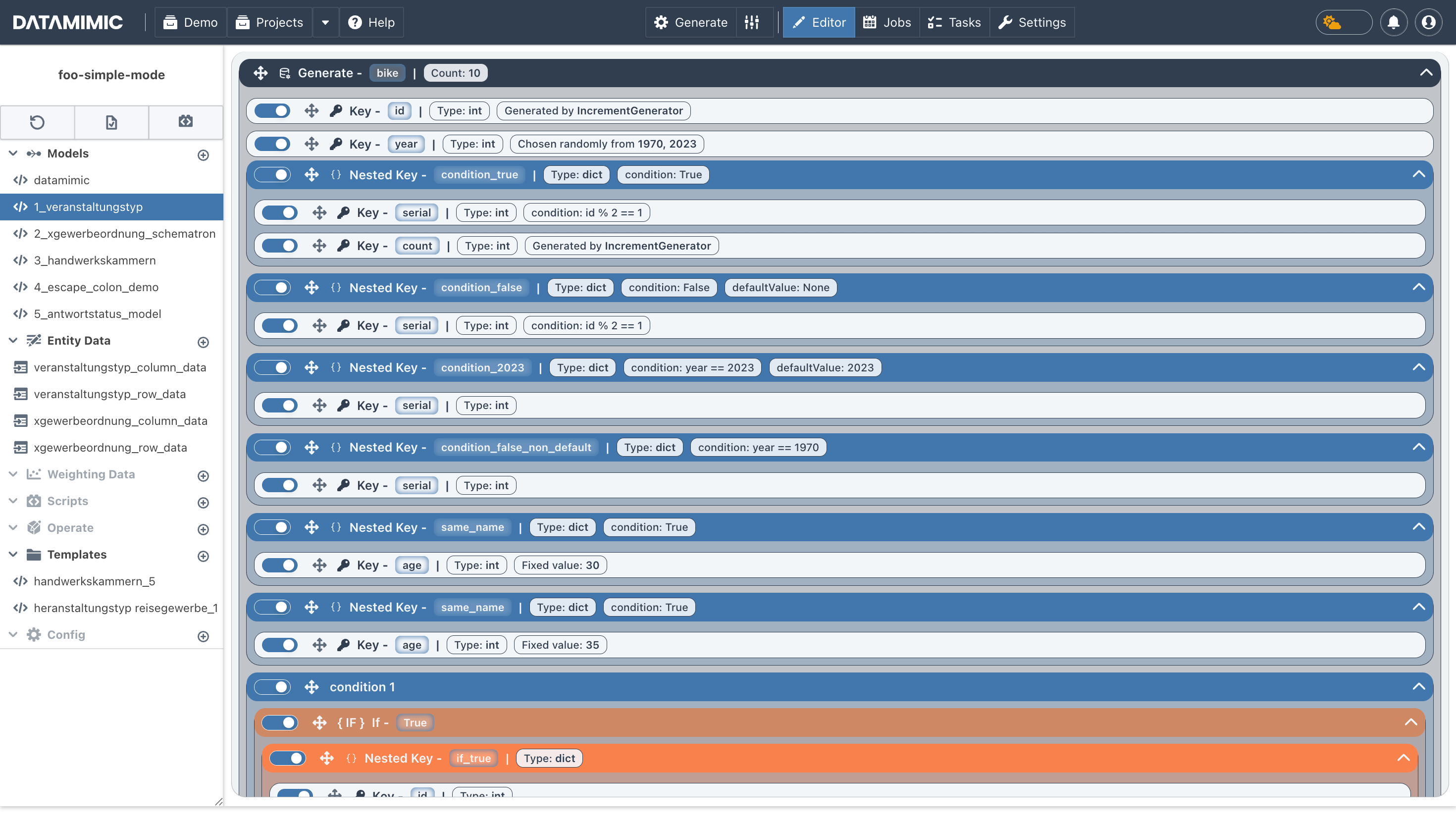
The Simple Mode provides a user-friendly interface with UI guidance to help you build and manage your data projects without needing to write code manually.
Advanced Mode (XML-based Code View)
The Advanced Mode allows you to write and edit XML-based code directly. This mode is ideal for users who prefer to work with code and need more control over the data project configuration.