Logs
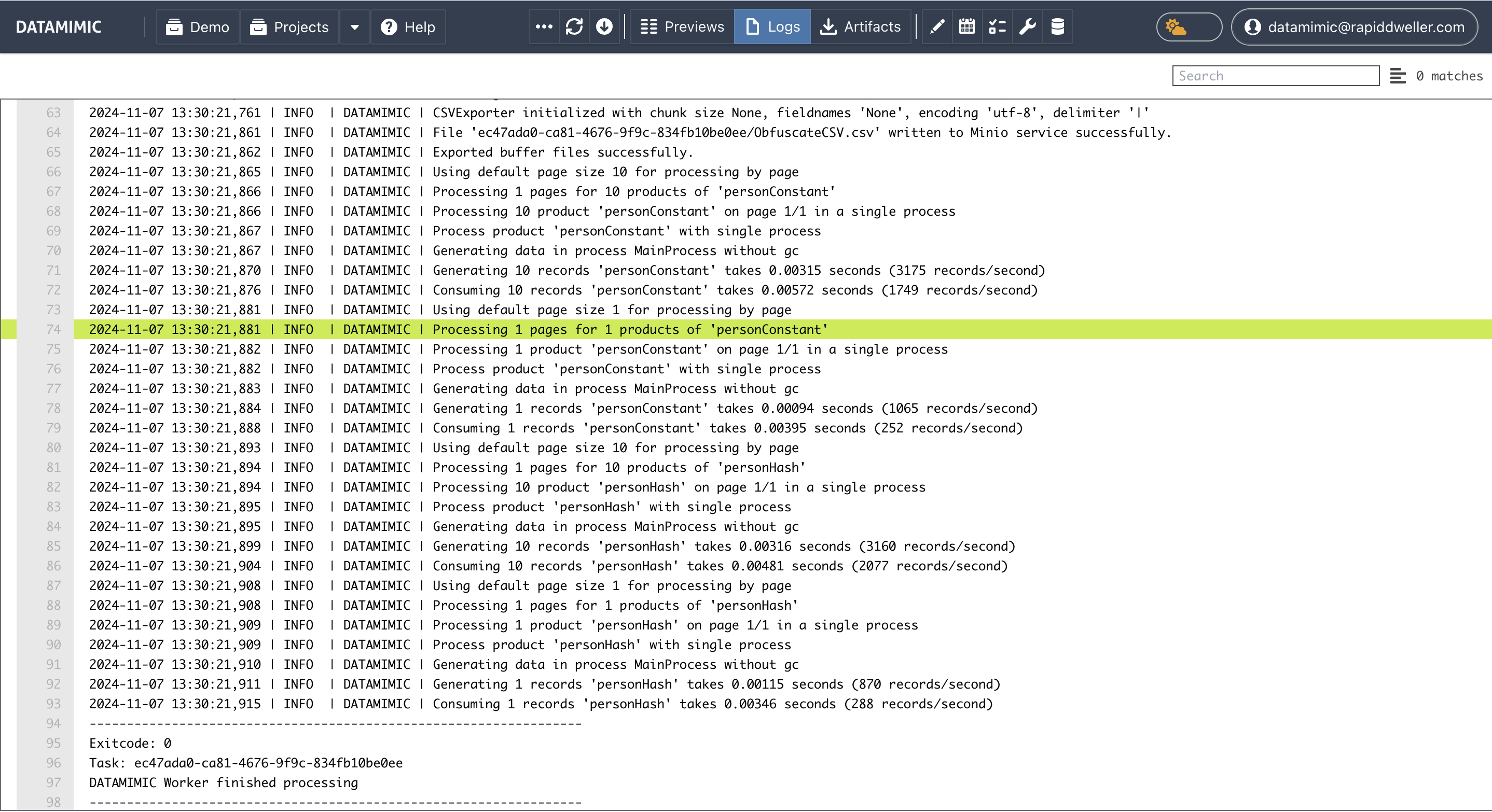
The task logs provide detailed information about each task's execution, including any errors or issues encountered. This feature is crucial for troubleshooting and ensuring that data generation processes run smoothly.
Accessing Task Logs
Task logs can be accessed from the task execution list by clicking on the log icon. This view displays the logs for the selected task, providing insights into the task's execution process.
Log Actions
At the top of the log view, there are two key actions available:
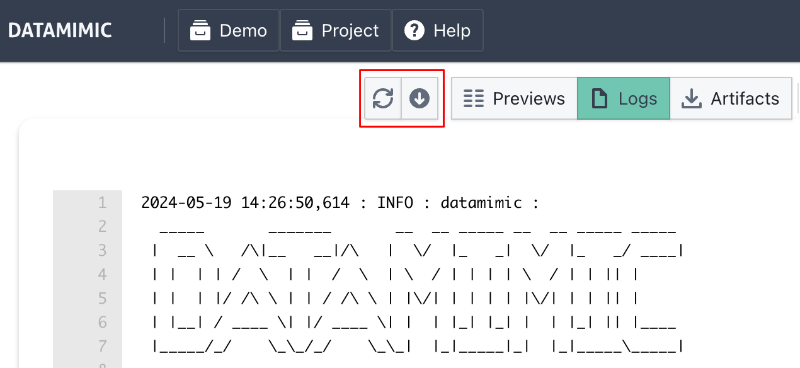
- Refresh Logs: Reloads the log content to display the most recent information.
- Download Logs: Allows you to download the log file for offline analysis or record-keeping.
This functionality ensures that users can keep track of task executions and handle any issues promptly, maintaining the integrity and reliability of their data generation processes.
Run Summary Lines
Many generation and database-scan tasks now include a short Run summary line in the logs.
These entries are optimized for quick human review in downloaded log files and include key execution metrics such as:
- scanned tables/columns
- action distribution (for example, generator/script/converter counts)
- PII candidate/key counts
- top generator usage
- release label used at runtime
Example:
1 | |
Note
If your deployment does not set RELEASE_VERSION, logs show release not configured for traceability.
Error Codes
DATAMIMIC uses standardized error codes for consistent troubleshooting. When errors occur, they appear in the logs with:
- Issue Code: Unique identifier (e.g.,
I322) - Message: Description of the problem
- Location: File and line number
- Guidance: How to resolve the issue
Example log entry:
1 2 3 | |
See the Error Codes Reference for a complete list of error codes and their resolutions.
Note
Logs are available for every task execution, whether it was initiated by a manual generation, advanced generation settings, or triggered by a CRON schedule. This ensures complete traceability and accountability for all operations within DATAMIMIC.