Project Users Management
Warning
The current page still doesn't have a translation for this language.
But you can help translating it: Contributing.
The Users section in the project settings allows you to manage user access to your project. You can add or delete users using the controls provided.
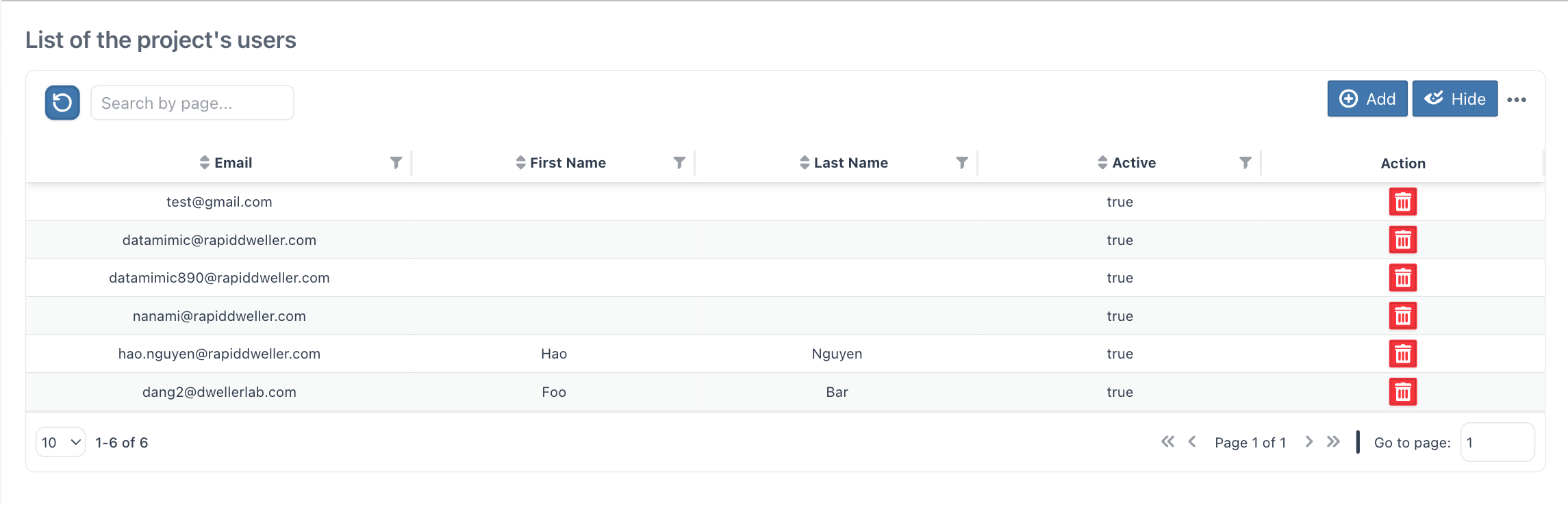
User Controls
Add User is located at the top right of the user pane. Delete User is a per-row action in the table's Action column.
- Add User: Opens a dialog to select and add a new user to the project.
- Delete User: Removes a single user from the project, after confirmation.
Add User
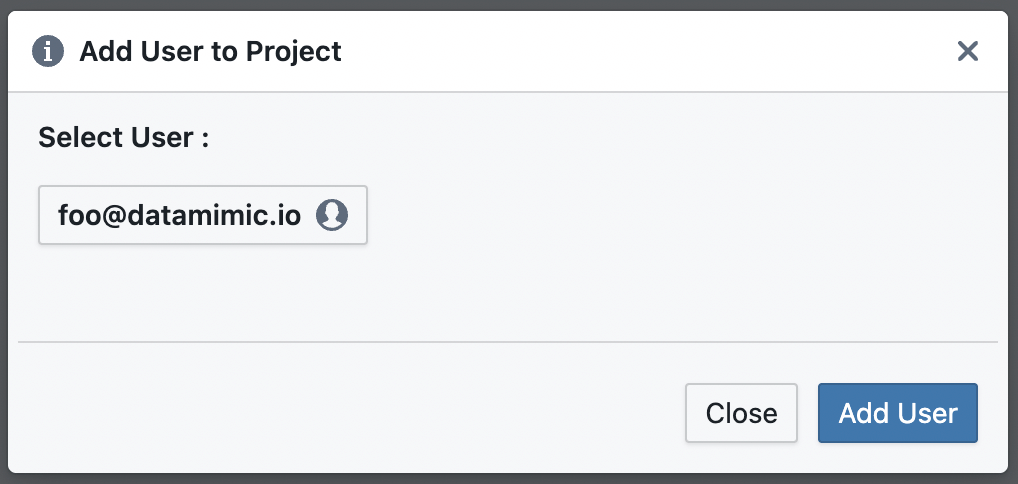
To add a user, click the Add button. This will open the "Add User to Project" dialog where you can select a user from the dropdown list and add them to the project.
Delete User
To delete a user, click the trash icon in the Action column of that user's row. This opens a confirmation dialog warning that the action is irreversible and cannot be undone; confirm to remove the user from the project. Only one user can be deleted at a time — there is no bulk delete.
User List
The user list displays the current users of the project along with their email, first name, and last name. You can manage user access efficiently using this interface.
For more details on managing project users and other project settings, refer to the Settings Overview.