Language Server Setting
DATAMIMIC includes an optional, per-project Language Server setting. When enabled, the editor uses LSP to provide improved autocomplete, hover/preview assistance, and editor diagnostics.
Where to find the toggle
- Open Project → Settings.
- On the Overview tab, locate the Language Server card.
- Use the LSP switch to turn the integration on or off. A tag next to the label shows whether it's currently Enabled or Disabled.
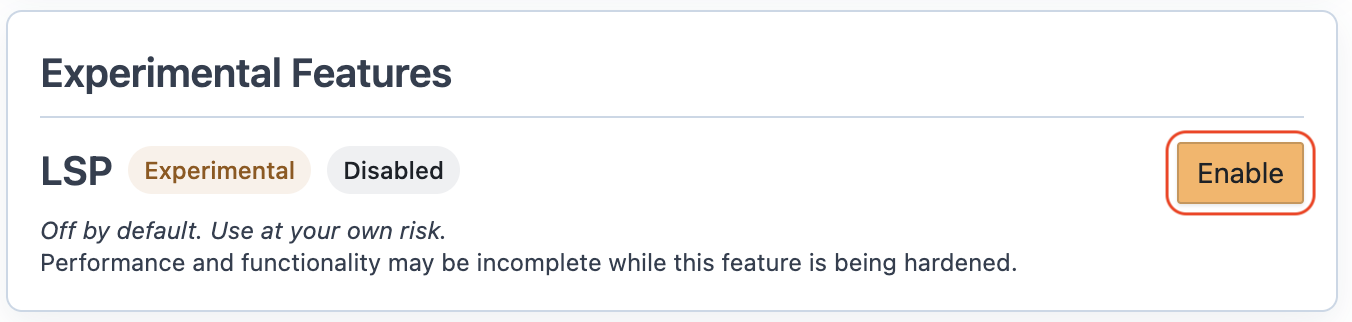
Enable / Disable
The switch takes effect immediately — there is no confirmation dialog or acknowledgement step. Toggling it on enables LSP for the project right away; toggling it off disables it.
What changes when enabled
- The editor starts an LSP session for the project and keeps it active across file switches inside the editor view.
- LSP assistance is used for XML-like, non-global files (for example
.xmland.template.xml). - Linked global projects can enrich LSP suggestions for the local project without making the global overlay files themselves editable through LSP.
- LSP especially improves expression help in
script=andcondition=attributes, plus deeper suggestions for template keys, CSV headers, and.ent.csvcolumns.
For what LSP does in each editor mode, see Editor: Language Server.