Project Workspace
The DATAMIMIC Project Workspace provides various tools and features to manage your data projects. The main areas include the Project Navigation Bar, Project Selection, and links to the Editor, Tasks, Schedules, and Project Settings including the Environment Management.
Project Navigation Bar
The Project Navigation Bar is located at the top of the screen and provides essential tools and actions for working within a project:
- Editor: Navigate to the editor window.
- Schedules: Manage schedules.
- Task: View and manage tasks.
- ML-Gen: Browse and run ML/rule-based generators.
- Workbench: Open the database planning workbench.
- Settings: Access settings for the project.
Note
Generate and Advanced Generation Settings are controls on the Editor page itself, not part of this shared navigation cluster — they render at the right end of the same bar, but only while viewing the Editor (Schedules, Task, and Settings don't show them). The Advanced Generation Settings icon (right of "Generate") lets you set additional settings for the generation process/task execution, described in detail in the Advanced Generation Settings documentation.

Project Selection
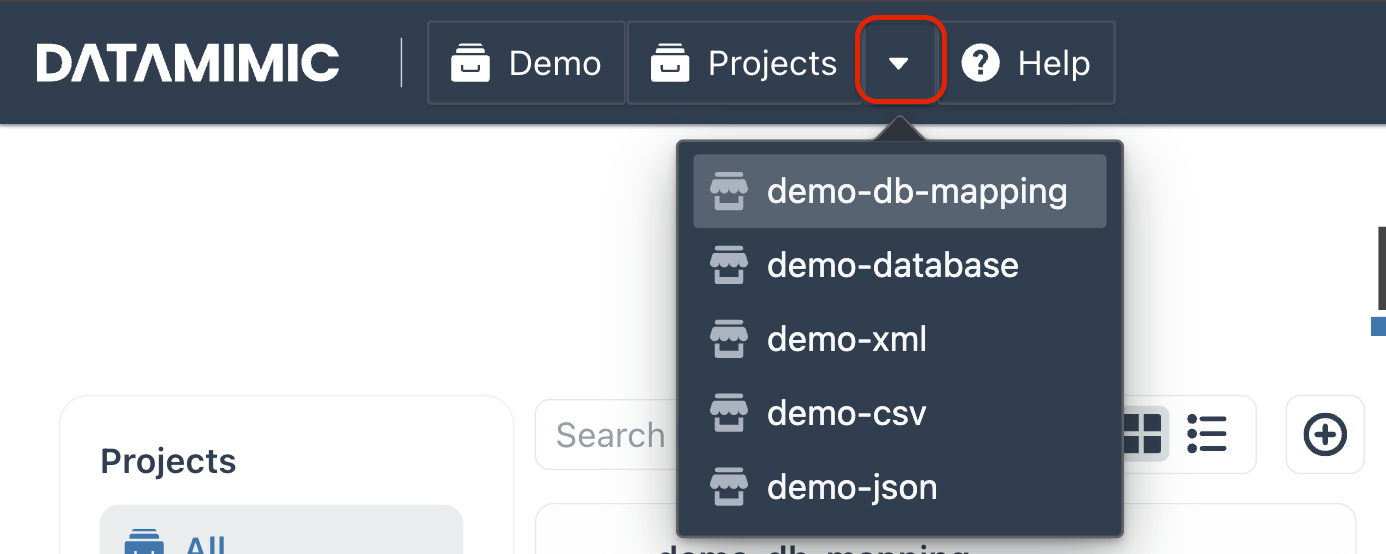
To quickly switch between your 5 latest projects, you have two options:
-
Use the Project Selection Dropdown: Click the recent-projects caret next to Projects in the navigation sidebar.
-
Press
/Key: Press the/key to open the project selection menu.
Use this to navigate between recent projects.
Project View
Access Project View by clicking Projects in the navigation sidebar.

Views
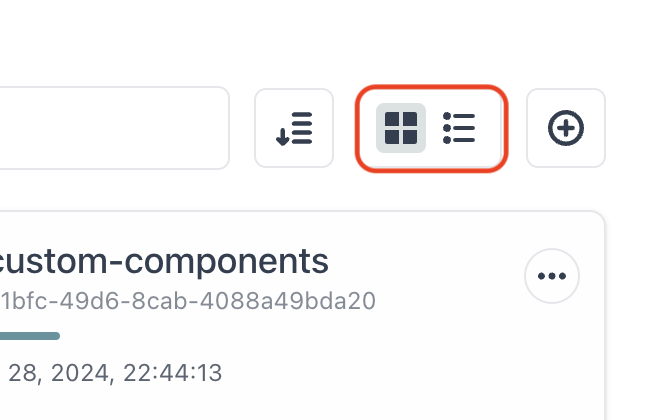
The Project View offers two display options: Grid and List. You can toggle between them using the view switcher.
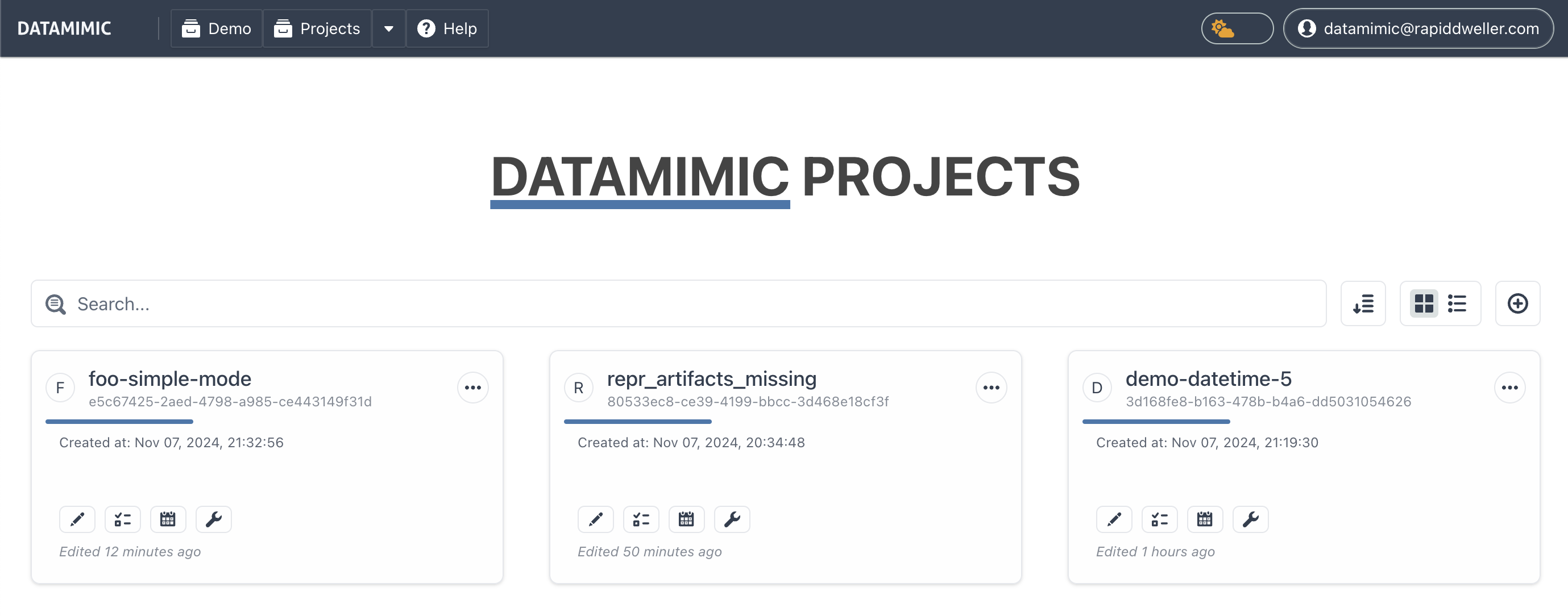
Grid View
Displays projects as short boxes arranged in a responsive grid, from 1 column on mobile up to 6 on very wide screens.
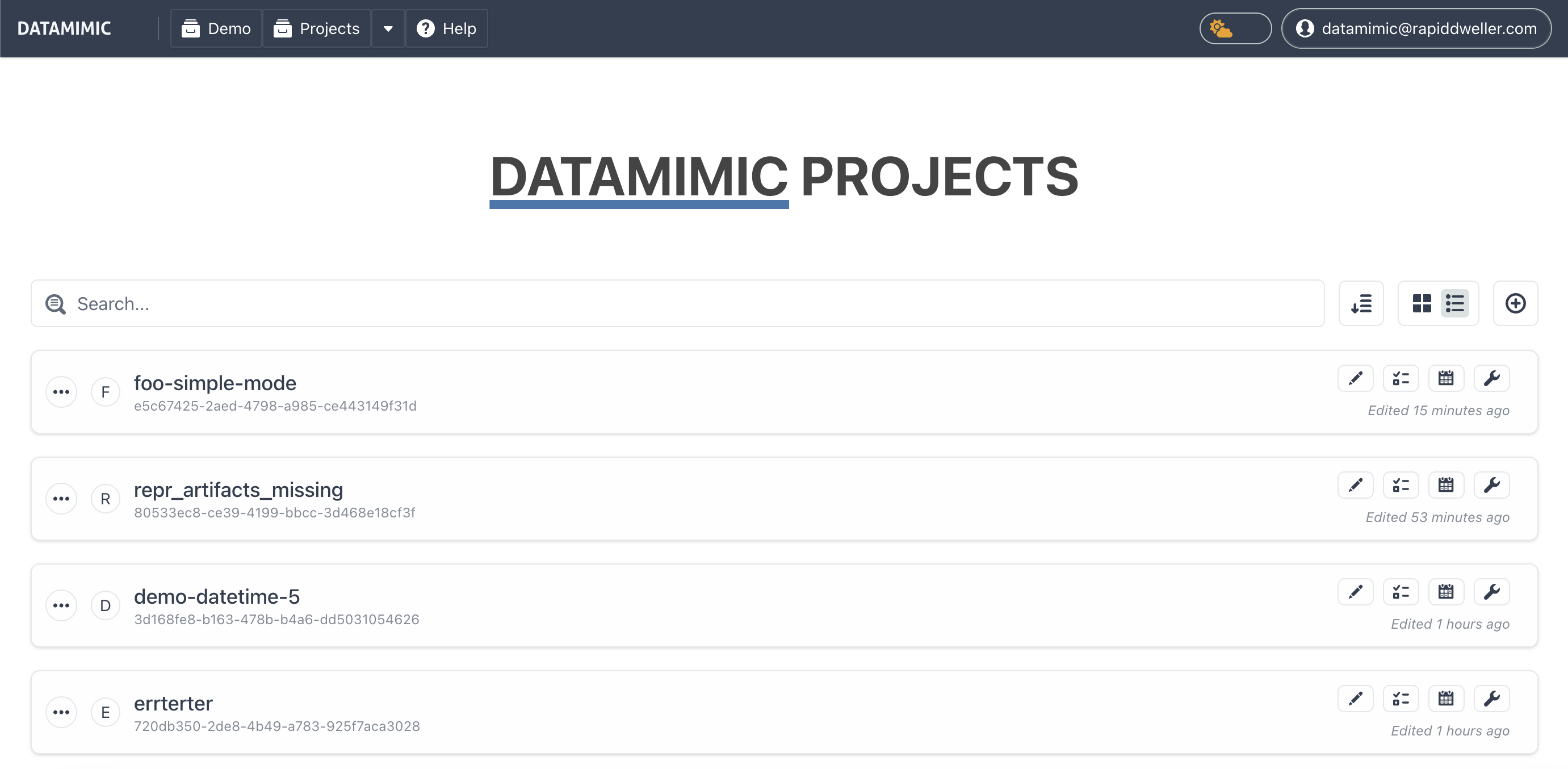
List View
Displays projects as long boxes with column direction.
Create a New Project
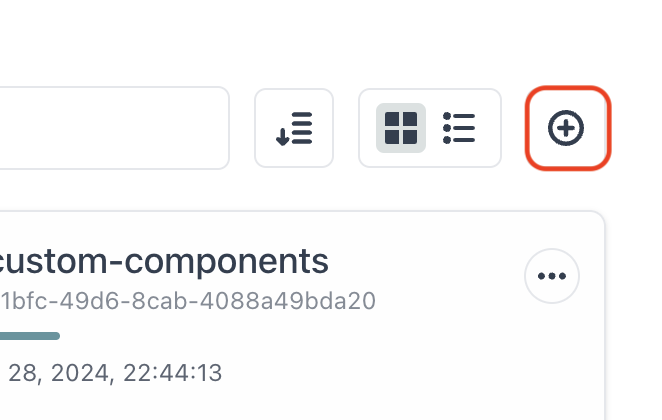
To create a new project, click the (+) button located on the right side of the view switcher. The Project Wizard will then guide you through the setup process, offering the following options:
Wizard Options
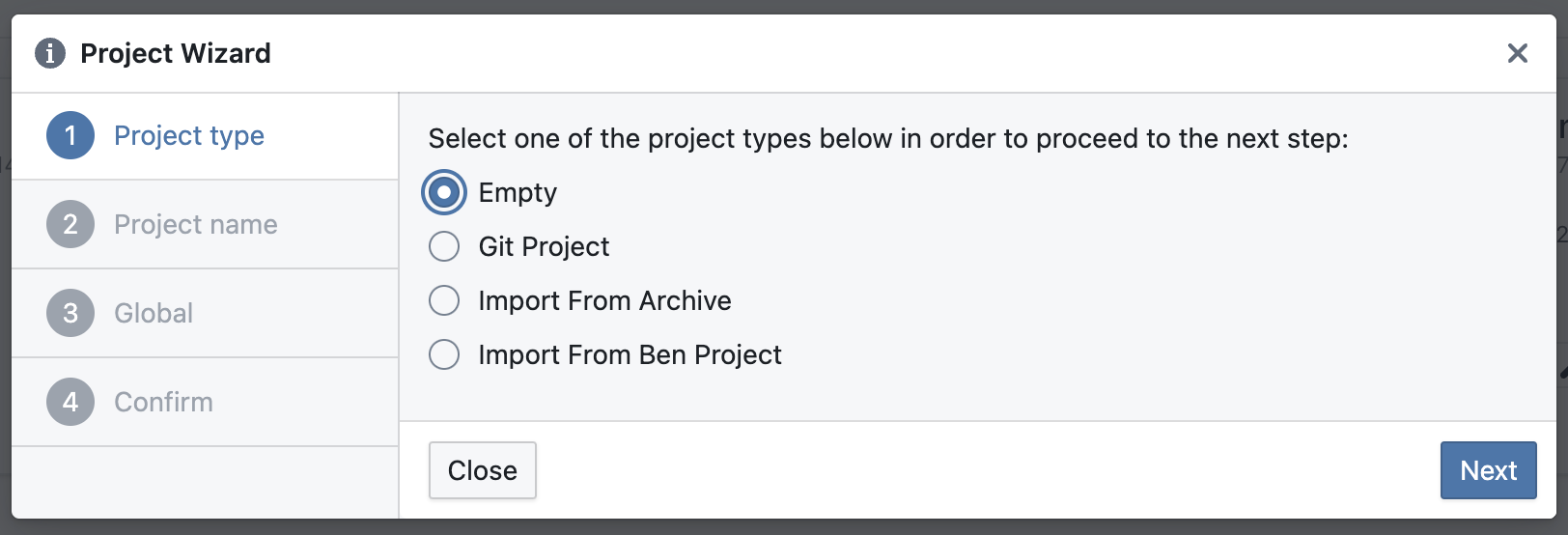
1. Empty
Empty creates a new project from scratch.
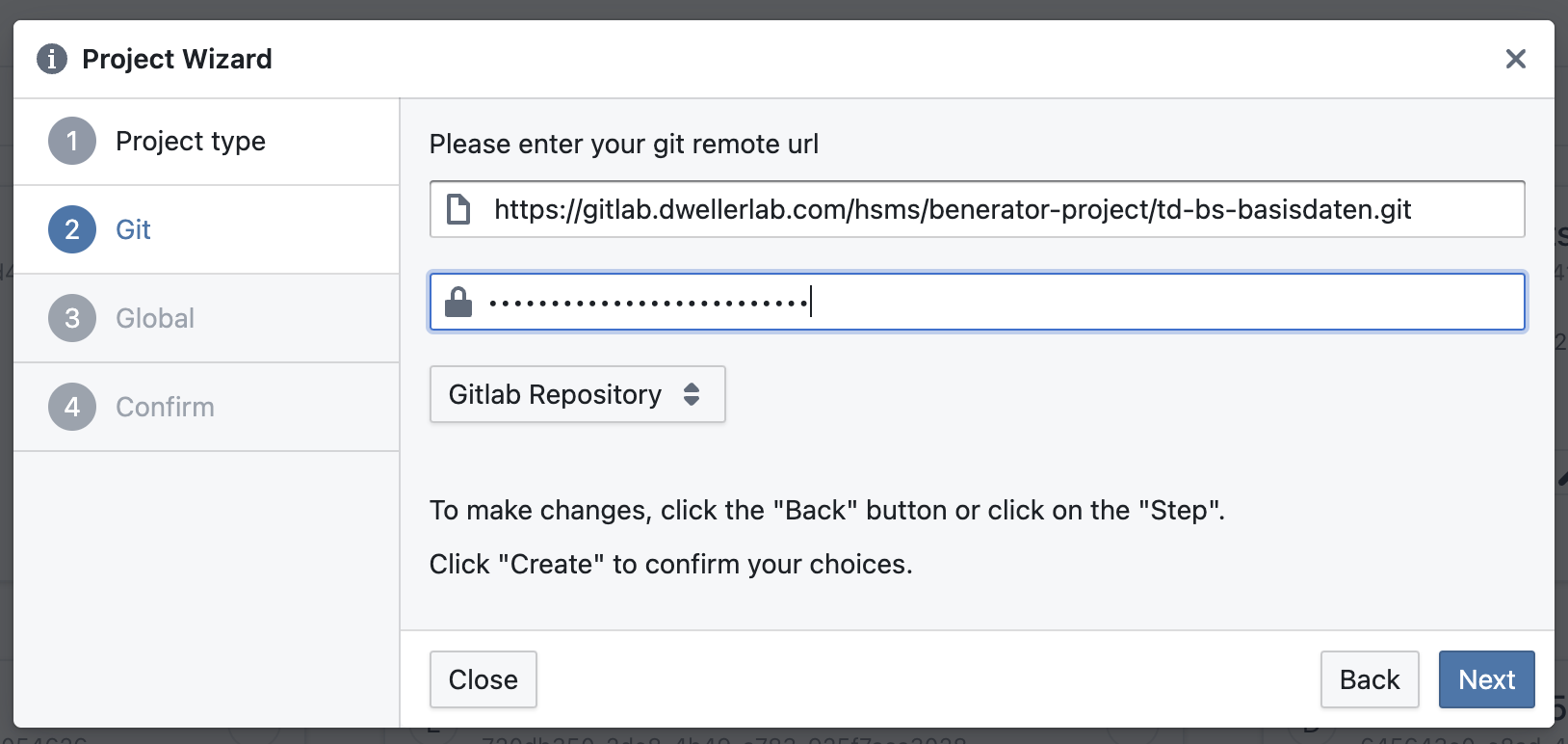
2. Git Project
The selection Git Project allows to clone a project from a Git repository.
Git sync and apply flows include additional overwrite safeguards to reduce accidental project-data loss in failure scenarios.
For the end-to-end Git workflow, including pushing task results and updating from remote, see Git Connected Functionality.
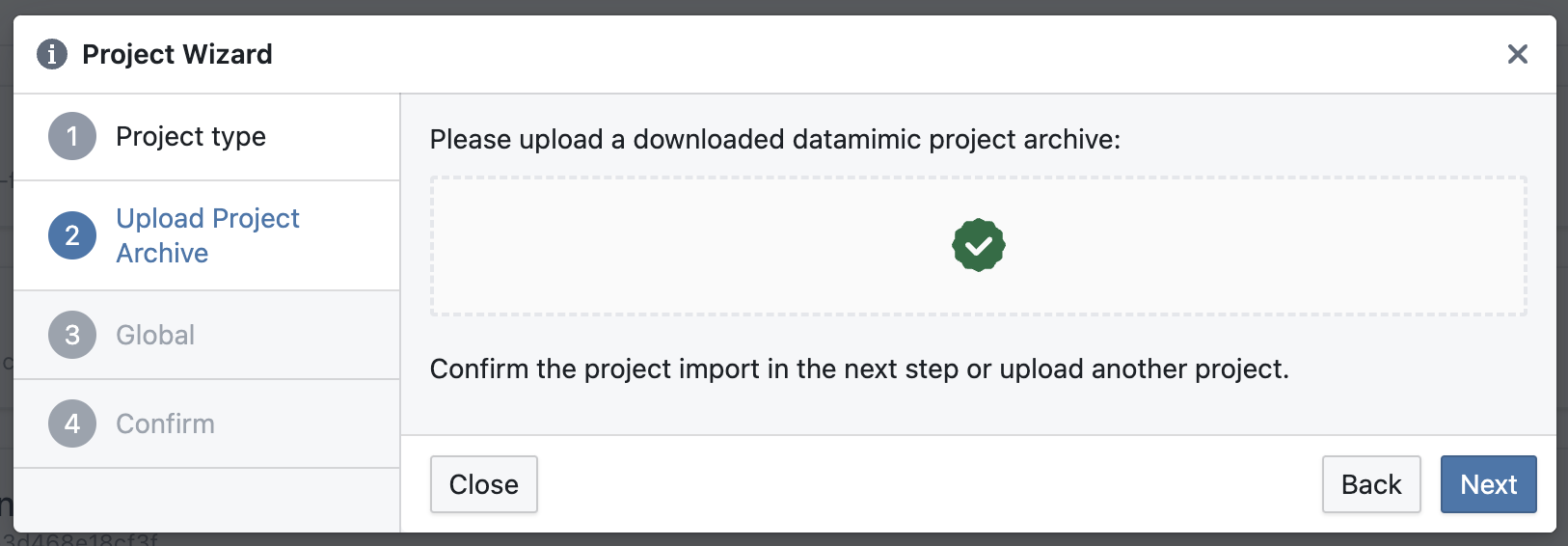
3. Import From Archive
Using Import From Archive you can upload a DATAMIMIC project archive. Archives can be created in Settings.
During import, unsupported or invalid files are filtered out so valid project content can still be imported safely.
Further reading
- Editor: The main tool for creating, editing, and modeling DATAMIMIC models.
- Tasks: View and manage tasks related to your data project.
- Schedules: Manage schedules for your data project.
- Settings: Configure settings for your project.
Sorting
To sort your projects, click the sort dropdown (next to the search field) to open the sorting options menu. A menu will appear with the following options:
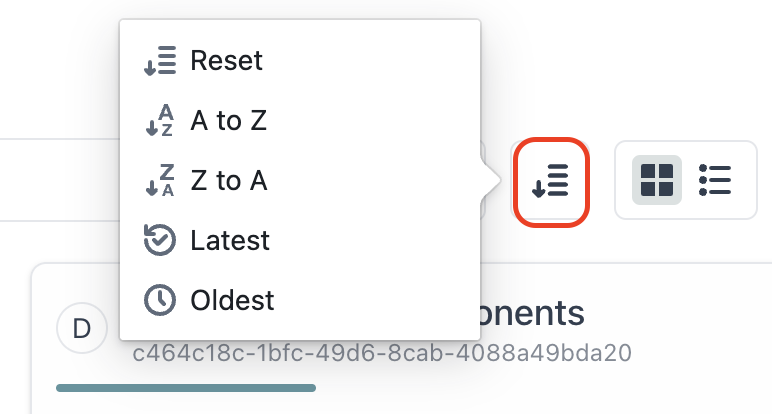
- Last edited: Sorts projects by the most recently updated (default).
- Name: Sorts projects alphabetically by name.
- Created: Sorts projects by creation date, newest first.
- Recently run: Sorts projects by the most recent task run.
Filtering
The sidebar on the left of the Project View filters your projects:
- Recent: Your 5 most recently edited projects.
- Projects: Filter by All, Global, Standard, or Git project type.
- Tags: Filter by any tag applied to your projects.