Install the DATAMIMIC IDE extension
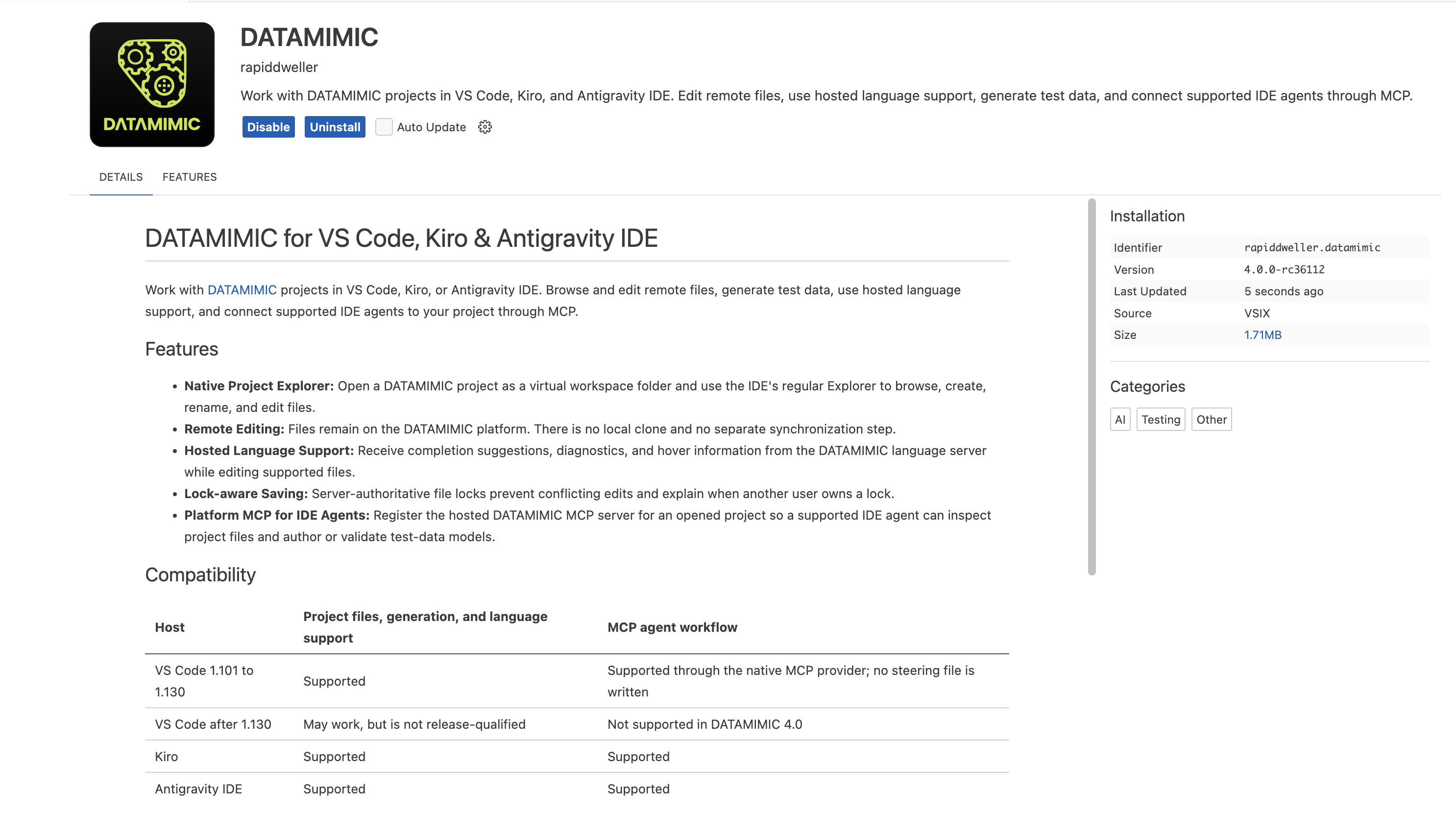
The DATAMIMIC Platform provides one extension package for Visual Studio Code, Kiro, and Antigravity IDE. The downloaded package already knows the address of the Platform from which you downloaded it. You do not need to enter a server URL.
Supported IDEs
- Kiro and Antigravity IDE: Project files, hosted language support, and the IDE agent workflow are supported.
- VS Code 1.101 to 1.130: Project files, hosted language support, and the native MCP agent workflow are supported.
- VS Code after 1.130: Project access may work, but is not release-qualified. The MCP agent workflow is not supported in DATAMIMIC 4.0.
Download the extension
- Sign in to your DATAMIMIC Platform.
- Open the user menu in the upper-right corner.
- Select Download IDE extension.
- Save
datamimic-platform.vsix.

The VSIX contains the public Platform URL, but no password, access token, or other user credential.
Install the VSIX
In Visual Studio Code, Kiro, or Antigravity IDE:
- Open the Extensions view.
- Open the Extensions More Actions menu (
...). - Select Install from VSIX....
- Select
datamimic-platform.vsix. - Reload the IDE when requested.
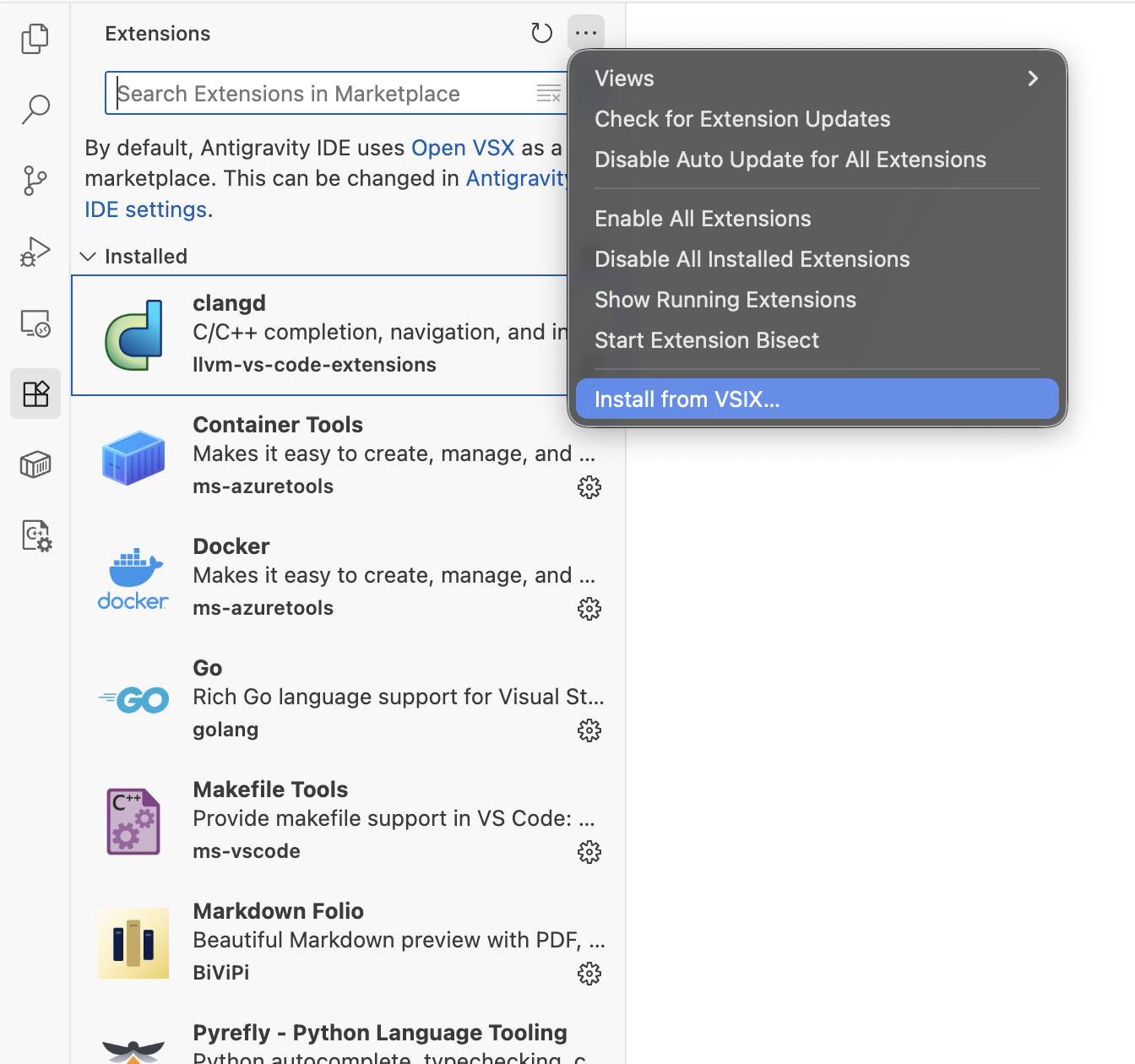
The exact menu position can differ slightly between the supported IDEs, but all three use the standard VSIX installation flow.
Connect to DATAMIMIC
- Open the DATAMIMIC view in the IDE activity bar, then select Connect to DATAMIMIC. You can also open the command palette and run DATAMIMIC: Connect to Platform.
- Your browser opens the Platform configured in the downloaded extension.
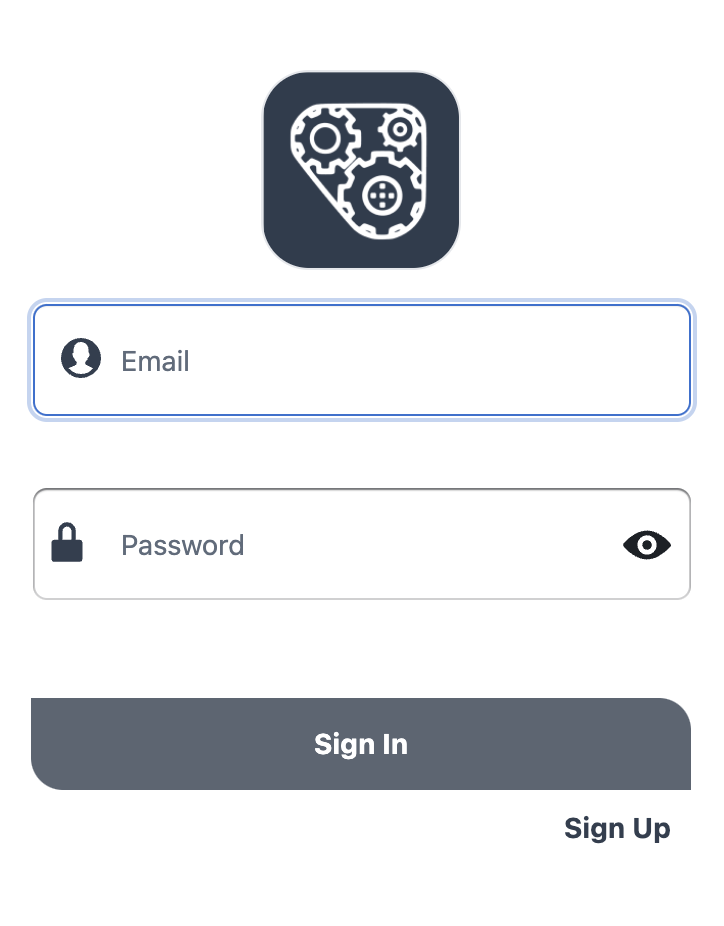
- Sign in if required, then select Allow once to approve access.
- Return to the IDE. Your DATAMIMIC projects appear in the DATAMIMIC view.
- Select a project to open it as a remote workspace.
Project files remain on the Platform. Opening a project also configures the project-scoped DATAMIMIC MCP connection for the supported IDE agent. No local project checkout is created.
Work with the project and IDE agent
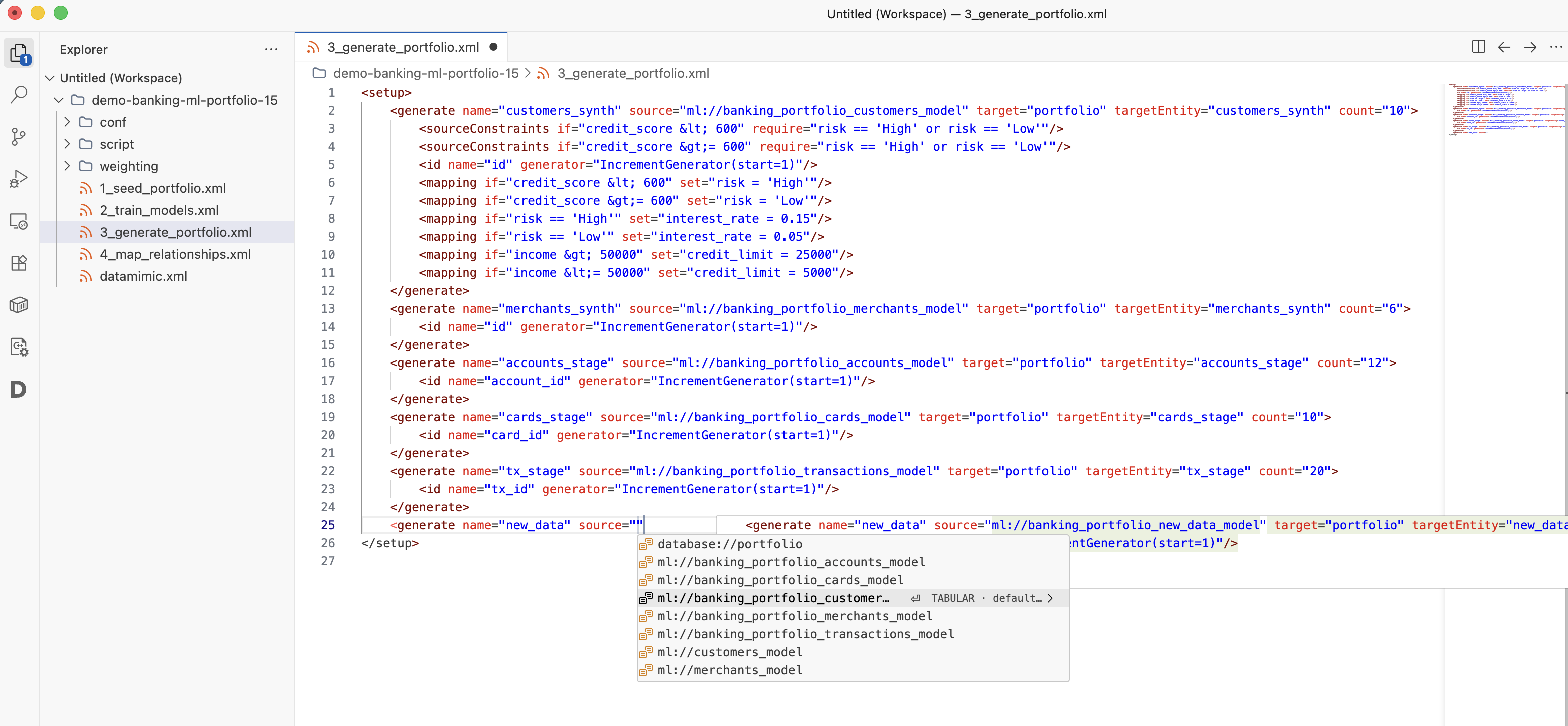
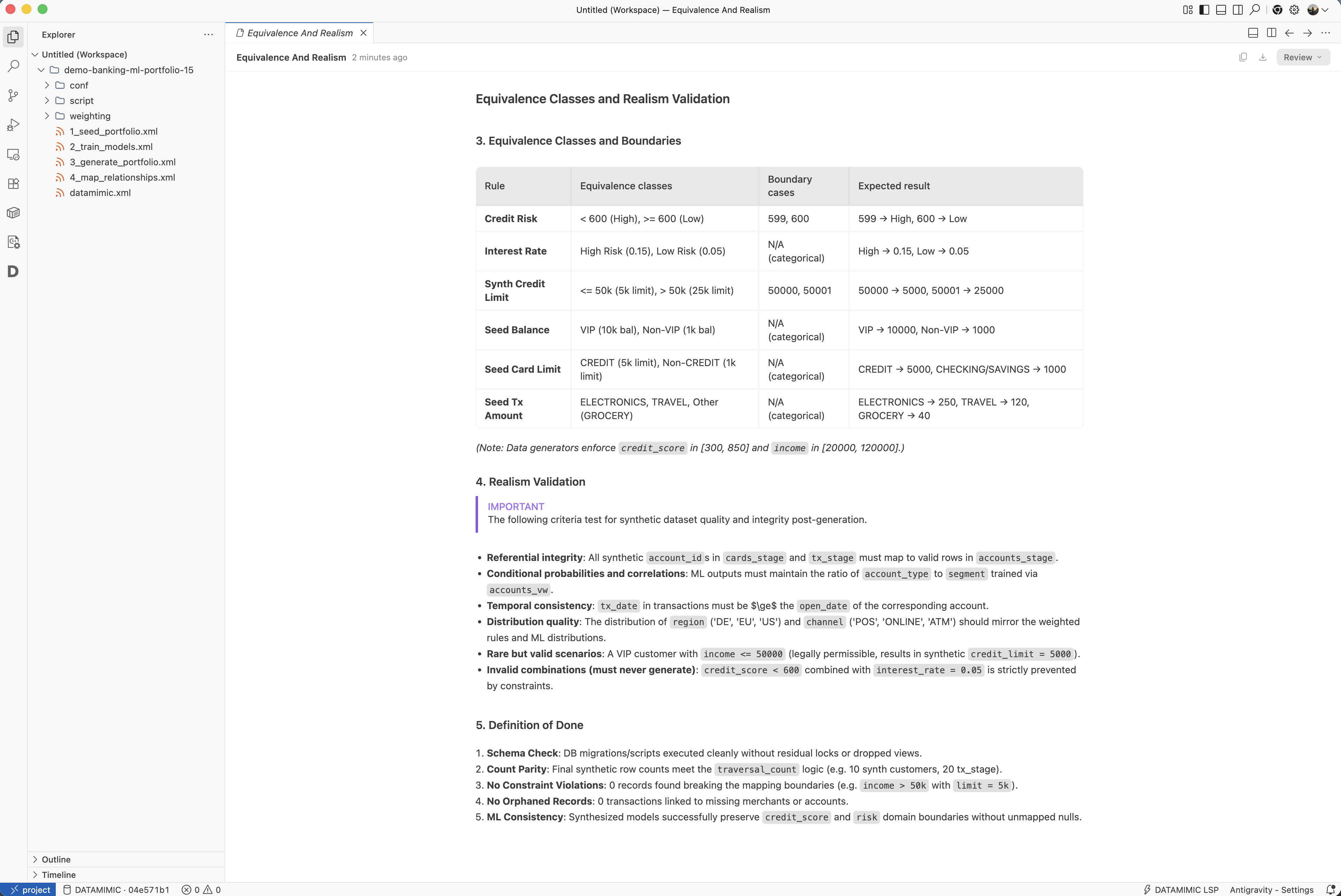
- Select a project in the DATAMIMIC view. It opens as a remote folder in the IDE Explorer.
- Open and edit files normally. Hosted language support provides completion, diagnostics, and hover information for supported files.
- In Kiro or Antigravity IDE, open the agent chat and ask about the current project. The extension registers the project-scoped DATAMIMIC MCP connection when the project opens; no manual MCP configuration is required.
- Review generated suggestions before changing or running a model.
Update the extension
Download the current VSIX from the same Platform and repeat Install from VSIX.... Confirm replacement if your IDE asks. This ensures that the extension and its configured Platform address match the deployment you use.
Troubleshooting
The browser opens the wrong Platform
Download the extension again from the intended Platform and reinstall that VSIX. A package downloaded from another deployment carries that deployment's address.
The download is unavailable
You must be signed in. If the menu entry returns an error, ask your Platform administrator to verify that the IDE extension was included in the deployment.
Authorization expired or nothing happens after Allow
Do not reuse or approve the same browser authorization page twice. Return to the IDE and run DATAMIMIC: Connect to Platform again to start a new authorization request.
No projects appear
Verify that your Platform account is a member of at least one project. Then run DATAMIMIC: Disconnect followed by DATAMIMIC: Connect to Platform.