File Locking
File locking protects persisted project files from concurrent writes. Every client keeps its own editor and LSP buffer, while the Platform decides which client may save, rename, or delete the current-project file.
Overview
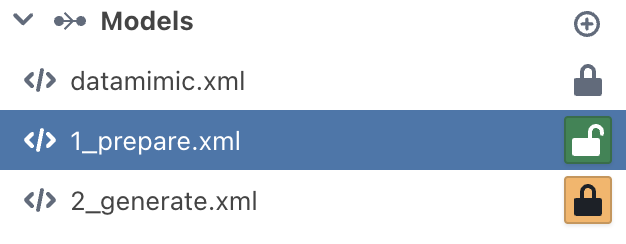
The same locking rules apply in automatic and collaborative mode. With one active client, DATAMIMIC hides the client's own lock decoration. With several clients or a foreign lock, it shows ownership and takeover controls.
How It Works
DATAMIMIC automatically acquires and renews the lock for an active or dirty editable file. A clean inactive file is released automatically. Other clients can still open and analyze the file, but it is read-only for persistent mutations while a foreign lock exists.

Automatic edit lifecycle
- Open or modify a current-project file.
- DATAMIMIC acquires and heartbeats the edit lock over the Workspace HTTP API.
- Save normally. The lock generation fences stale writes.
- When the file is clean and inactive, DATAMIMIC releases the lock.
The Workspace event stream publishes presence, lock projection, and committed file changes. It is observational; lock acquire, heartbeat, release, and takeover are HTTP commands. Global-project winners remain read-only and have no lock action.

What Happens When a File is Locked
For Other Users
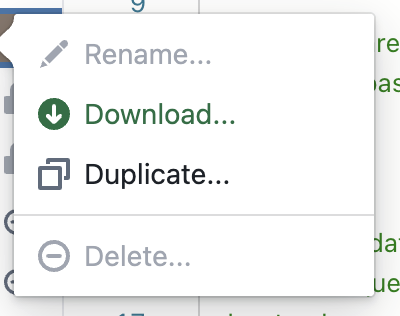
- File opens in read-only mode - you can view but not edit
- Lock owner's name is displayed when hover to 🔒 icon
- Rename/delete options are disabled
For You (Lock Owner)
- File is fully editable - you can make changes normally
- All operations are available (rename, delete, edit)
Taking Over a Lock
If you need to edit a file that's locked by someone else:
- Click the takeover action on the foreign lock
- A warning dialog appears explaining the consequences
- Click "Take over and accept data loss" to accept the possible data loss
- The previous user's unsaved changes can no longer be saved without reconciliation
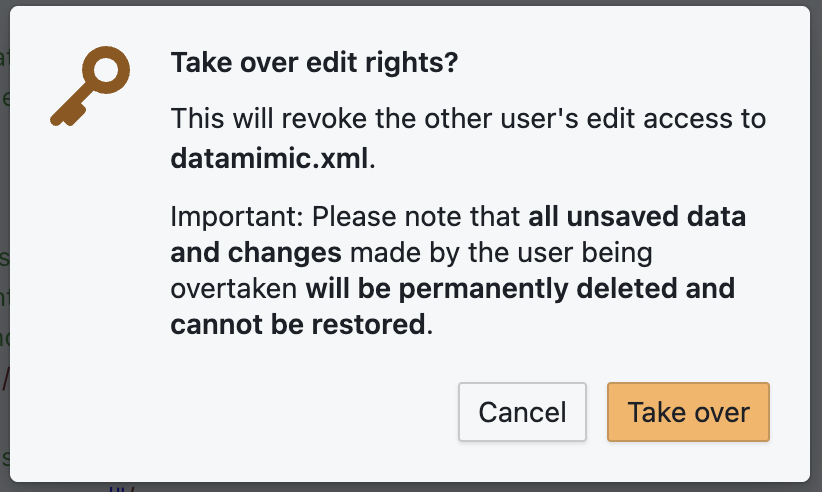
⚠️ Important: Taking over can cause data loss. Coordinate with the previous owner before confirming it.
Notifications
You'll receive notifications when a lock conflict occurs or someone takes over your lock.
Best Practices
For Smooth Collaboration
- Save changes promptly so the automatic lifecycle can release clean inactive files.
- Communicate with teammates before taking over a lock.
When to Steal a Lock
- Only when necessary and after checking with the lock owner
- When the lock owner is unavailable and you need urgent access
- After confirming the other user's work won't be lost
Troubleshooting
Lock status is unavailable
- Check your connection. The Workspace event stream must reconnect and replace local state with an authoritative snapshot.
- While the stream is unavailable, DATAMIMIC shows unknown collaboration state and grants no offline takeover authority.
- Focus or reload the client to trigger explicit recovery if automatic retries are exhausted.
Can't Edit a File
- Check if the file is locked by another user
- Look for the lock icon (🔒) in the file tree
- Contact the lock owner or use the explicit takeover action after accepting the data-loss warning.